Email Link Safety: How to Scan URLs Before Clicking in Emails (Complete Guide)
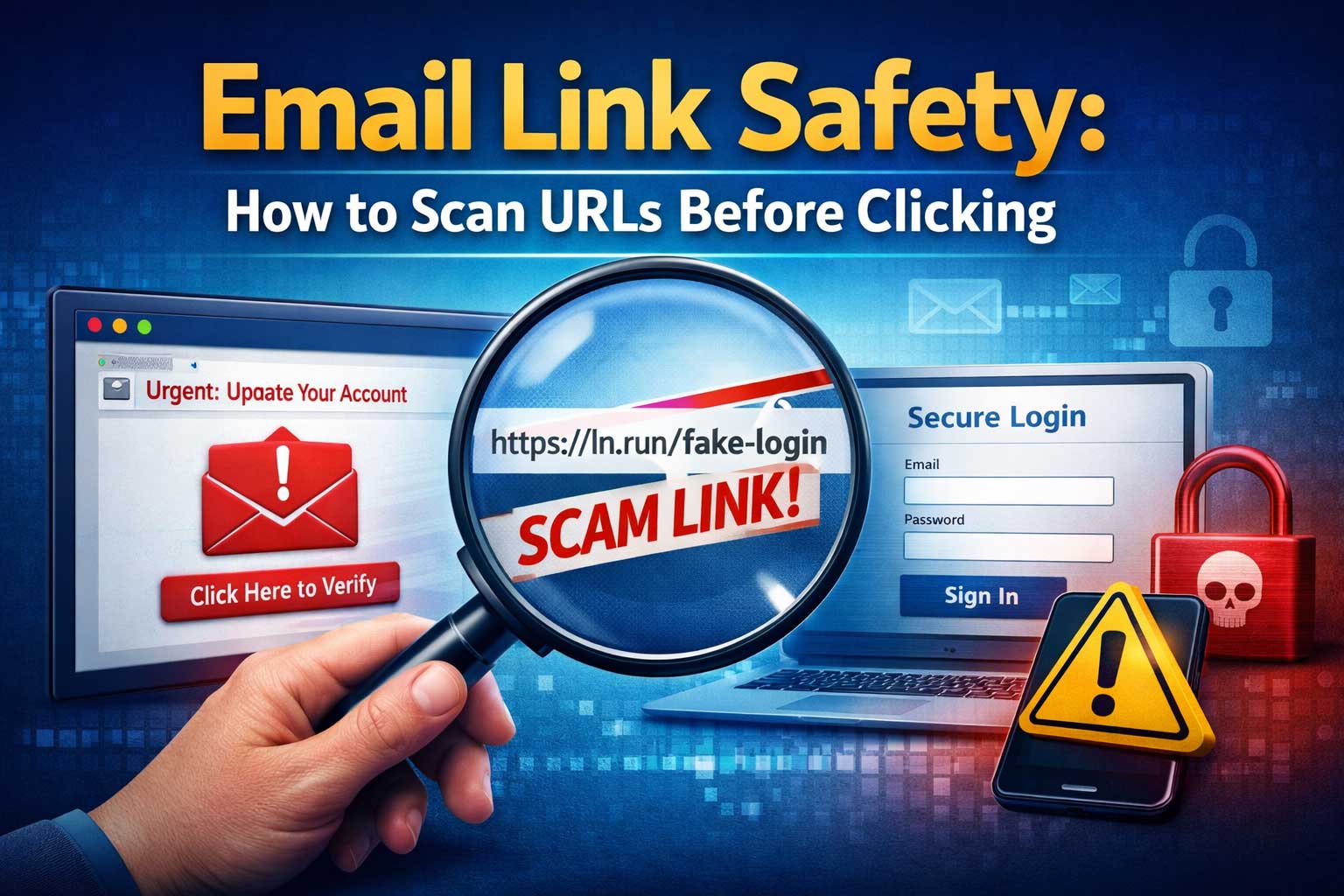
Email is still one of the most common ways people get tricked online. Not because you’re careless, but because modern scams are designed to feel normal: a “payment failed” notice, a “document shared with you” message, an urgent “account locked” alert, or a friendly note that looks like it came from someone you know.
The good news: you don’t need advanced cybersecurity skills to stay safe. You just need a consistent habit of scanning and verifying links before you click—especially when an email tries to create urgency, fear, excitement, or confusion.
This guide is a complete, practical, step-by-step system to help you evaluate email links safely on both desktop and mobile. It goes deep into how scammers hide where links really go, how to read addresses correctly, how to spot impersonation, and what to do if you clicked something risky.
Why email links are risky (even when the email looks legit)
Most “bad link” situations fall into a few categories. If you understand these, you’ll know what you’re defending against.
1) Phishing pages (credential theft)
A phishing link leads to a fake login page that looks like a real one. The goal is to get you to type your password, a one-time code, a bank PIN, or other sensitive information. Often, the page is nearly identical to the real site.
2) Payment and invoice scams
These push you to “pay now,” “confirm billing,” or “update payment details.” The link may lead to a fake payment portal, a form that steals your card details, or a real payment page controlled by scammers.
3) Malware delivery and “drive-by” traps
Some links trigger downloads, prompt you to install a “viewer” or “security update,” or push you to open a file that contains malicious code. Not every infection requires you to download a file, but downloads dramatically increase the risk.
4) Redirect chains that hide the destination
A link can bounce through multiple tracking or redirect services. That makes it harder for you to confirm where you’re going and easier for scammers to swap destinations later.
5) Business email compromise and impersonation
Sometimes the email itself is from a compromised account (a real person’s mailbox). The link might be “legitimate-looking,” but the request is fraudulent: change bank details, purchase gift cards, approve a new payee, or upload sensitive documents.
The key idea: you’re not just checking if a link “looks okay.” You’re checking whether the email’s story matches reality, and whether the destination is truly the right place to go.
The mindset that keeps you safe: slow down and verify
Scams succeed when you act fast. Attackers use emotional triggers:
- Urgency: “Your account will be closed today.”
- Fear: “Suspicious login detected.”
- Authority: “From IT admin” or “From your bank.”
- Curiosity: “See who viewed your profile.”
- Greed: “You’ve won” or “Refund available.”
- Pressure: “Last chance to confirm.”
A safe habit is simple:
- Pause for 10 seconds.
- Scan the email’s claim (what is it asking you to do?).
- Inspect the link destination without clicking.
- Verify through a trusted path (manual navigation, known app, bookmarked login).
If a message is truly important, it will still be important after you verify it safely.
Understand what you’re inspecting: how web addresses work (in plain language)
When you “scan a URL,” you’re really scanning the destination and the path used to reach it.
A typical web address has parts:
- Protocol/scheme: how your device connects (secure or not)
- Host: the website’s identity (this matters most)
- Subdomain: a label in front of the main site name
- Domain + extension: the core identity (what you trust or don’t trust)
- Path: the page location on that site
- Parameters: extra data, often used for tracking, redirects, or session info
What matters most?
The host (the real site identity).
Scammers win when you focus on the beginning of the link, or the “friendly text,” instead of the real host.
The most common trick
They make the link look like a trusted brand, but the true host is different. For example:
- A trusted brand name appears in the subdomain but not in the actual domain.
- The “display text” in the email says one thing, but the underlying destination is different.
- The link includes a long string of random characters to distract you.
Your job is to locate the actual domain and decide whether it’s the real one you expect.
The fastest pre-click checklist (60 seconds or less)
Before you click any link in an email, run this quick checklist:
Step 1: Does the email context make sense?
- Were you expecting this message?
- Does it match something you recently did (login attempt, purchase, password reset)?
- Is the tone weird or overly urgent?
- Is the request unusual (new payment method, gift cards, wire transfer)?
Step 2: Who is the sender—really?
- Does the sender name match the sender address?
- Is the address slightly misspelled?
- Is it from a free email provider when it should be from a company domain?
- Is it from a lookalike address that’s easy to miss?
Step 3: What exactly is the email asking you to do?
- Log in?
- Open a document?
- Pay?
- Confirm personal info?
- Install something?
The more sensitive the action, the higher your verification standard must be.
Step 4: Inspect the link destination without clicking
- On desktop: hover to preview the destination
- On mobile: long-press to preview
- Check the domain carefully
- Watch for odd redirects or short links
Step 5: Use a safer alternative path
If it’s a bank, email provider, shopping site, or cloud storage service:
- Open the official app
- Type the site manually (not from the email)
- Use a bookmark you already trust
If the email is real, you’ll see the same alert inside your account.
How to preview a link safely (desktop and mobile)
On desktop: hover preview
When you hover over a link, most email clients show the destination in the bottom corner or a small tooltip.
What to do:
- Hover and read the destination slowly
- Focus on the domain (the core identity)
- Ignore distractions like long paths and random characters
Common mistakes:
- Reading only the first part of the destination
- Seeing a trusted brand name somewhere in the string and assuming it’s safe
- Assuming a lock icon or “secure” wording means legitimacy
On mobile: long-press preview
Mobile is harder because there’s no hover. Long-press usually reveals a preview panel.
What to do:
- Long-press the link
- Look for a “preview link” option if available
- Carefully inspect the domain
- If anything feels off, close the preview and verify using a trusted path
Mobile risk warning:
Scammers rely on small screens where long domains are truncated and tiny typos are harder to see. On mobile, use an even stricter “verify through the app” habit.
The most important skill: spotting lookalike domains
Lookalike domains are the core of phishing. Attackers register addresses that resemble real brands, then build pages that copy the real login screen.
1) Subdomain confusion
A link may include the brand name early in the address to trick you, but the real domain is later.
How to beat it:
Identify the main domain and extension at the end of the host. Don’t trust a brand name that appears only in front labels.
2) Typos and character tricks
Attackers use:
- missing letters
- extra letters
- swapped letters
- similar-looking characters
- odd punctuation in the name
How to beat it:
Read the domain letter-by-letter for critical accounts like banking, email, and work logins. Don’t “pattern match” quickly—scammers rely on that.
3) Unexpected domain extensions
A brand might normally use one extension, but the phishing site uses a different one.
How to beat it:
For high-value logins, only trust the exact domain you already know. If you can’t confirm, don’t click.
4) “Secure” words in the address
Words like “secure,” “verify,” “login,” “support,” and “account” don’t make a site safe.
How to beat it:
Ignore the words. Judge only the real domain identity and whether you reached it through a trusted path.
Short links and redirects: how scammers hide the destination
Some links are designed to hide where they go until you click.
Why short links are risky in email
- They hide the real destination
- They can redirect multiple times
- They can be swapped later
- They make manual inspection harder
How to handle them safely
- Treat short links as “unknown destination” until proven otherwise
- Prefer verifying by opening the official app or navigating manually
- If it’s a work environment, ask for the destination in plain text through a separate channel (like a verified chat thread or direct call)
Redirect chains and tracking
Even legitimate companies use tracking links that redirect. Scammers abuse the same idea.
Red flags:
- The link goes to a strange domain first, then redirects
- The destination is hidden behind multiple layers
- The email pressures you to act fast before you can verify
Safer habit:
If the email is from a service you use, go to the service directly through your usual method and check notifications there.
Attachments and “document share” emails: the hidden risk
Not all threats are in links. Many begin with a “shared document,” “invoice,” or “scanned copy” attachment.
High-risk attachment types
- Office documents that request enabling macros
- Files that are executable installers
- Archive files that contain other files inside
- “PDF-looking” files that behave oddly or request logins immediately
Safer handling
- If you weren’t expecting a file, verify with the sender through another channel
- Don’t enable macros or “editing mode” just to view content
- If it’s a work document, open it through your organization’s official document system, not from the email link
- If you must view a file, use a secure viewer, and keep your device updated
Important:
A legitimate company rarely requires you to install a special “viewer” from an email link. That’s a classic scam pattern.
A deeper inspection method: evaluate the email itself
Sometimes the link looks okay, but the email is the real clue. Use these checks to decide whether the message is trustworthy.
1) Sender identity consistency
- Sender name matches the address?
- Reply-to address differs from sender?
- The address looks “almost right”?
If you see inconsistencies, treat the message as suspicious even if it references a real brand.
2) Writing patterns
Phishing emails often have:
- awkward phrasing
- strange punctuation
- inconsistent formatting
- generic greetings
- too much urgency
But modern phishing can be well-written, especially when generated or copied from real templates. So don’t rely only on language quality.
3) The ask is unusual
Be extra cautious if the email asks for:
- passwords
- one-time codes
- payment changes
- gift card purchases
- private documents
- remote access tools
Legitimate organizations rarely request sensitive info by email.
4) Mismatch between your actions and the email claim
If the email says:
- “Your password was reset” but you didn’t do it
- “Payment failed” but you didn’t buy anything
- “New login detected” but you were sleeping
Don’t click the email link. Go directly to your account using a trusted path and check security activity.
Practical URL scanning: what to look at first, second, and third
When you preview a link destination, scan in this order:
1) The domain identity
This is the make-or-break detail.
- Is it the exact site you expect?
- Is it spelled correctly?
- Is the extension what you trust?
2) The page purpose (path)
After the domain checks out, look at the path and see if it matches the email story.
- A billing email should lead to a billing page (on the real domain)
- A password reset email should lead to a password reset page (on the real domain)
If the path looks random or unrelated, treat it as suspicious.
3) Parameters and extra strings
Parameters can be normal (tracking, language, session). But they can also hide redirect destinations.
Red flags:
- very long strings that look like encoded data
- multiple “redirect” style parameters
- the email says it’s one thing, but the destination looks like a different workflow
Safer habit:
If you see complexity you can’t confidently interpret, don’t click. Navigate manually.
How to scan links for brand impersonation (real-world scenarios)
Here are common email themes and how to handle them safely.
Scenario A: “Your account will be locked”
Goal: get you to log in quickly.
Safe response:
- Don’t click the email link
- Open the official app or sign in through your known method
- Check security alerts, recent logins, and account notifications
- If the alert is real, you’ll see it there
Scenario B: “A document was shared with you”
Goal: steal login credentials or deliver malware.
Safe response:
- Confirm whether you expected a document
- Verify the sender using a known contact method
- Access shared files via your official cloud storage interface or work platform
- Avoid signing in through an email link
Scenario C: “Invoice attached” or “Payment overdue”
Goal: trick you into paying or opening a malicious attachment.
Safe response:
- Validate whether you have a relationship with the sender
- Compare the invoice request with your records
- If it’s a vendor, contact them using an existing phone number or verified contact
- Never pay based solely on email instructions
Scenario D: “Package delivery problem”
Goal: get personal data, payment details, or install an app.
Safe response:
- Check orders inside the shopping platform or official delivery app
- Avoid clicking “track package” links in unsolicited emails
- Don’t install a “tracking app” from a message
The safest way to handle email links: don’t click at all (for important accounts)
For your most critical accounts—email, banking, work admin panels, cloud storage—your default should be:
- Never sign in from an email link
- Never reset a password from an email link unless you initiated it
- Navigate manually or use the official app
This single habit stops a huge percentage of phishing attempts because even a perfect-looking phishing email can’t succeed if you refuse to use its link.
Built-in protections you should turn on (and why they matter)
Even with perfect habits, extra layers help.
1) Two-factor authentication (2FA)
If someone steals your password, 2FA can block them. Use a strong method offered by your service.
Note: Some phishing pages try to steal one-time codes too. That’s why link scanning still matters.
2) Password managers
A password manager helps in two ways:
- It generates strong, unique passwords
- It often refuses to auto-fill on lookalike domains
If the manager doesn’t auto-fill where you expect it to, treat that as a warning sign.
3) Updated devices and browsers
Many attacks rely on old vulnerabilities. Keep:
- operating system updated
- browser updated
- security software updated (if you use it)
4) Email filtering features
Most major email systems flag suspicious messages. Don’t ignore warnings like “this message looks dangerous” or “sender not verified.”
Filtering isn’t perfect, but it reduces the volume of threats you see.
Advanced but practical: safe “open” strategies when you must investigate
Sometimes you need to check a link for work or you’re not sure if it’s legitimate. Here are safer approaches that reduce risk.
1) Use a separate browser profile
A separate profile reduces exposure of saved sessions, cookies, and credentials.
2) Don’t log in immediately
If you open a link, do not enter credentials right away. First:
- verify the domain identity again
- close the tab if anything looks off
- navigate to the site manually instead of signing in on that page
3) Avoid downloading anything prompted by email
If a page asks you to download a “security update,” “document viewer,” or “verification tool,” stop. That’s a common malware path.
4) Use organizational tools (if available)
In many workplaces, security teams provide safe analysis tools or protected browsers. Use them rather than testing suspicious links on your personal device.
What to do if you already clicked a suspicious link
Clicking isn’t always catastrophic. What matters is what happened next.
If you clicked but did not enter any information
- Close the page immediately
- Clear the tab
- Run a quick security scan if your device supports it
- Keep an eye on account security notifications
If you entered a password
- Change the password immediately (through a trusted path, not the email link)
- Enable or re-check 2FA
- Sign out of other sessions if the service allows it
- Review account activity and recovery settings (email, phone number, backup codes)
If you entered a one-time code
Treat it as urgent:
- Change your password
- Review recent logins
- Check for newly added devices, forwarding rules, or recovery options
- Contact support if you see unauthorized changes
If you downloaded and opened something
- Disconnect from networks if you suspect an infection
- Run a full security scan
- Remove suspicious apps or extensions
- If it’s a work device, report it to your IT or security team immediately
The earlier you act, the easier it is to contain damage.
Email link safety for businesses and teams (policies that actually work)
If you manage a team, you can reduce risk dramatically with a few practical policies.
1) Require out-of-band verification for sensitive changes
For payment changes, bank details updates, and vendor onboarding:
- verify through a known phone number
- use a verified internal chat channel
- require secondary approval
2) Train people on “domain-first reading”
Teach staff to:
- preview links
- identify the real domain
- distrust urgent login links
This is more says-it-all than a long list of technical rules.
3) Protect email authentication where possible
Email authentication standards can reduce impersonation:
- SPF
- DKIM
- DMARC
These don’t stop all threats, but they reduce spoofing and improve filtering.
4) Use least-privilege access
If someone’s account is compromised, least privilege limits impact. Make sure:
- admin roles are minimal
- access is reviewed regularly
- sensitive workflows require approvals
Common myths that lead to unsafe clicks
Myth 1: “If it shows a lock icon, it’s safe”
A lock means the connection is encrypted, not that the site is legitimate. Scam sites can use encryption too.
Myth 2: “It came from a known brand, so it must be real”
Sender names can be forged, and brand templates can be copied. Trust verification, not appearance.
Myth 3: “I’m careful, so I can tell”
Even professionals get fooled sometimes. The goal isn’t perfect intuition—it’s repeatable process.
Myth 4: “Short links are always bad”
Not always. But in email, they increase uncertainty. For important actions, avoid them and navigate manually.
The ultimate step-by-step routine (copy this into your daily habit)
Here’s a simple routine you can do every time:
- Pause
- Identify the ask (login, payment, file, info)
- Check sender (address, not just name)
- Preview the link (hover or long-press)
- Read the domain carefully
- If high-risk action: don’t click—navigate manually or use the official app
- If uncertain: verify with the sender through a separate trusted channel
- If you clicked and entered info: change credentials immediately through a trusted path
If you do this consistently, you’ll stop most email-based attacks before they start.
Frequently Asked Questions
How can I tell where a link really goes without clicking?
Use link preview features. On desktop, hover over the link. On mobile, long-press. Focus on the domain identity shown in the preview.
What’s the single biggest red flag in an email link?
A domain that is not exactly the site you expected—especially if the email is asking you to sign in, pay, or confirm sensitive information.
Are “shared document” emails safe?
They can be, but they’re frequently abused. If you weren’t expecting a document, verify with the sender through another channel and access documents through your official platform rather than the email link.
What if the email looks perfectly authentic?
Treat authenticity as something you prove, not something you feel. For critical actions, avoid email links and navigate manually through known trusted routes.
Is it safe to click a link if I don’t type anything?
Clicking alone is sometimes low risk, but not always. It can lead to malicious downloads, fake prompts, or exploit attempts. If you clicked, close the page and avoid further interaction.
Why do scammers use urgency so much?
Urgency reduces verification. The more rushed you feel, the more likely you’ll click and type information without checking the destination.
Conclusion: safe clicking is a habit, not a guess
Email link safety isn’t about paranoia—it’s about control. You control whether you click. You control whether you verify. And you control whether you use the email’s path or your own trusted path to reach an account.
If you take only one rule from this guide, make it this:
For important accounts and sensitive actions, never log in from an email link. Preview the destination, then navigate manually or use the official app.
That one habit blocks a massive portion of phishing attempts—no special tools required.