Malware Links vs Phishing Links: Differences and How to Detect
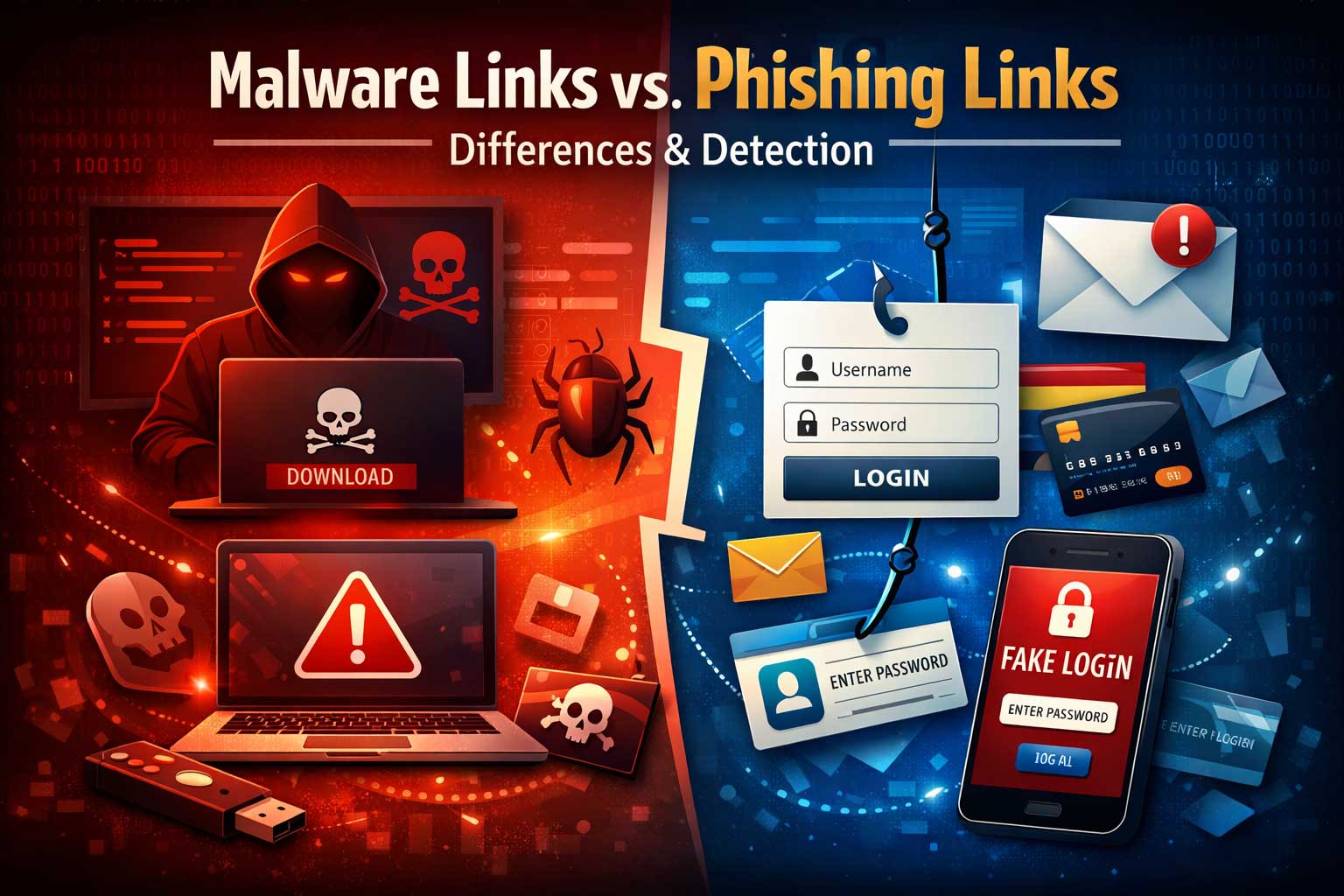
Malicious links are one of the most common ways people and organizations get compromised. They show up in email, text messages, social media, ads, chat apps, and even documents that look completely normal. Two of the biggest categories you’ll hear about are malware links and phishing links. People often mix them up because both can start with a click, both can be disguised as something trustworthy, and both can lead to serious damage.
But they’re not the same.
A phishing link typically tries to trick you into giving something away—your password, one-time code, payment information, or other sensitive data. A malware link typically tries to put something on your device—a harmful program, a malicious script, or a chain of downloads that leads to infection.
Sometimes attacks combine both: a phishing page might deliver malware, or malware might later enable phishing by stealing your contacts and messaging people from your account. Still, the difference matters because the warning signs, damage patterns, and best defenses are often different.
This article breaks down malware links vs phishing links in deep detail, shows how each one works, explains why they overlap, and gives you practical detection and response methods—both for everyday users and for businesses.
Key takeaways you can use immediately
- Phishing links usually aim for credentials or sensitive actions (logging in, paying an invoice, approving access).
- Malware links usually aim for device compromise (downloads, exploit-driven infection, hidden installs).
- The same message can contain both threats—don’t assume it’s only one type.
- Your best protection is layered: human checks + browser and email defenses + endpoint protection + strong authentication.
- If you already clicked, what matters next is what happened after the click: did you enter information, download anything, or approve access?
What is a “malicious link”?
A malicious link is any clickable path (in email, chat, text, a QR code result, an ad, or a button) that leads to harm. The harm might be:
- installing malicious software
- stealing credentials
- tricking you into paying money
- hijacking an account session
- redirecting you through multiple places until you land somewhere dangerous
- capturing personal information or business data
The word “link” can be misleading because the risk isn’t the click by itself—it’s what the click triggers: a website, a download, a login form, a script, a redirect chain, or a permission request.
Definitions: Malware links vs phishing links
Malware links (definition)
A malware link is a link that leads to malicious code execution or a malware installation path. The goal is usually to compromise a device or system.
Common outcomes include:
- ransomware infection
- spyware or surveillance software
- information-stealers that grab saved passwords and cookies
- remote-access tools that give attackers control
- botnet infection that uses your device for spam or attacks
- crypto-mining malware that drains performance
Malware links can work in multiple ways:
- direct download of an infected file
- tricking the user into installing a fake update or “required” app
- abusing browser or software vulnerabilities (less common today for fully updated systems, but still happens)
- redirecting through an ad network or compromised site until malicious code runs
Phishing links (definition)
A phishing link is a link designed to deceive a person into revealing sensitive information or performing a sensitive action.
Common targets include:
- usernames and passwords
- multi-factor authentication codes
- password reset flows
- payment details
- identity information
- authorization prompts that grant access to an account or data
Phishing doesn’t necessarily require malware at all. Many phishing attacks succeed even if the victim’s device stays “clean,” because the attacker gets access through stolen credentials or granted permissions.
Why the difference matters
If you treat all malicious links the same, you may miss the most important clues:
- A phishing link often looks like a routine business process: “Sign in,” “Verify,” “Update billing,” “View secure document,” “Approve request.”
- A malware link often pushes a device action: “Download,” “Install,” “Open this file,” “Enable permissions,” “Run the update.”
The difference also affects what you do after an incident:
- If you entered a password, your priority is account containment: password change, session revocation, security review, monitoring.
- If you downloaded something, your priority is device containment: disconnect, scan, isolate, analyze, restore.
And it affects what organizations prioritize:
- Phishing defense emphasizes strong authentication, identity controls, and user training.
- Malware defense emphasizes endpoint protection, application control, patching, and safe browsing controls.
How attackers deliver malicious links
Malware and phishing links rely on the same distribution channels because the easiest way to reach people is through systems people already trust and use daily.
Email remains the top delivery method because it can look official, it can impersonate brands, and it can target employees by role. Email messages may include:
- a button that looks like a file share or invoice
- a “review document” prompt
- a fake security alert
- a “package delivery” message
- a job offer or payment notice
Text messages and chat apps
Texts and chat apps feel personal and urgent. People click faster because:
- the message is short
- the screen shows less context
- links are often shortened or disguised
- the sender appears like a known contact (sometimes because a real account was compromised)
Social media and comment sections
Scammers use:
- fake giveaways
- “copyright claim” warnings
- impersonated customer support accounts
- malicious links hidden behind shortened or masked previews
Ads and “sponsored” results
Some attacks are delivered through malicious ad placements or compromised ad networks. These may redirect through multiple pages until the final destination triggers phishing or malware.
QR codes
QR codes turn a physical scan into a digital click without showing the destination clearly. They appear on posters, menus, parking notices, and even fake shipping slips.
Documents and collaboration tools
Attackers can hide malicious links in:
- shared documents
- calendar invites
- file share notifications
- “comment” alerts that prompt you to sign in
Search traps
Some attackers create pages designed to rank for trending topics, then funnel visitors into scams—especially during tax season, major events, or breaking news.
Deep dive: How malware links work
Malware link attacks typically aim to move you from “click” to “code execution” as smoothly as possible. The attacker’s challenge is that modern systems have better protections than they used to—so malware delivery often involves deception and multi-step chains.
Common malware-link patterns
1) Direct malicious download
The link leads to a file download. The file may appear to be:
- a document
- a compressed archive
- an installer
- a media file
- a “report” or “invoice”
The attacker hopes the user opens it without thinking. Often, the “document” is really a program or contains content that triggers additional downloads.
Detect it: be suspicious of unexpected downloads and files that require you to “enable” something to view content.
2) Fake update or fake tool
The link leads to a page claiming you must install a “required” update to continue. Common disguises:
- browser update prompt
- video player update
- security scan result urging a cleanup tool
- “This document needs a special viewer”
This works because people are used to updates and plug-ins.
Detect it: real updates come from your device’s built-in update system or official app stores, not random pop-up prompts.
3) Multi-stage download (“dropper” chain)
The first file is small and looks harmless. Its job is to fetch the real payload later. This helps attackers:
- bypass some scanning
- reduce detection at the first step
- tailor payloads by device type, region, or time
Detect it: treat any unexpected installer as dangerous even if it looks small or simple.
4) Drive-by compromise (exploit-based)
This is less common for fully updated browsers and devices, but it still happens—especially when:
- the device is outdated
- plugins are vulnerable
- the system is unpatched
- a specific app has a known weakness
A drive-by attack tries to compromise you without requiring you to manually install something.
Detect it: you might not notice right away. That’s why patching and endpoint protection matter.
5) “Consent” malware (permission abuse)
Sometimes malware doesn’t need to “break in” if it can convince you to grant powerful permissions. For example:
- allowing notifications that spam you with scams
- granting accessibility permissions on mobile
- allowing an unknown app to install other apps
- approving device management profiles
Detect it: permission requests that don’t match what you’re doing are a major red flag.
What malware links usually try to achieve
Ransomware
Ransomware aims to lock or encrypt data and demand payment. In business environments, ransomware often follows an initial infection and then spreads.
Early clues: unusual file activity, sudden slowdowns, security tools disabled, new background processes.
Information-stealers
These focus on grabbing:
- saved passwords
- browser cookies
- session tokens
- crypto wallet data
- autofill data
Stealers are especially dangerous because even if you change a password, stolen session tokens can sometimes keep access alive until revoked.
Early clues: often none visible. You discover later through account alerts and unusual logins.
Remote access tools
These let attackers control a device and move through a network. They can:
- watch what you type
- install more tools
- steal files
- use your device as a pivot point
Early clues: unknown remote access prompts, unusual admin permissions, processes you don’t recognize.
Botnet and fraud tools
A botnet-infected device may be used to:
- send spam
- run automated clicks
- participate in attacks
- host malicious content
Early clues: unexpected network usage, performance issues, strange background tasks.
Deep dive: How phishing links work
Phishing links are primarily social engineering: manipulating human behavior. The attacker’s strongest weapon isn’t code—it’s persuasion.
Common phishing-link patterns
1) Credential harvest pages
The link leads to a page that looks like a real login. It asks for:
- username
- password
- sometimes a one-time code
The attacker then uses those credentials to log in elsewhere.
Detect it: unexpected login pages, especially when you weren’t trying to sign in.
2) Account “verification” and “security alert” scams
These messages claim:
- your account is locked
- suspicious activity was detected
- you must verify now
- your payment failed
The goal is to trigger urgency so you act before thinking.
Detect it: urgency + fear + a login link is one of the biggest phishing signals.
3) Payment redirection and invoice fraud
The link leads to:
- a fake payment portal
- updated banking details
- a form to enter card information
- a “confirm transfer” page
This is common in business settings where invoices are routine.
Detect it: verify payment changes through a separate channel, especially if banking details change suddenly.
4) “Secure document” traps
You’re told a file is waiting, but you must “sign in to view.” The page is fake and captures credentials.
Detect it: real document sharing usually has recognizable patterns and doesn’t pressure you to re-authenticate unexpectedly.
5) Authorization phishing (permission grants)
Instead of stealing your password, the attacker tries to get you to:
- approve access to an app
- grant permissions to read mail or files
- approve a sign-in request
This can bypass passwords entirely.
Detect it: treat unexpected permission screens as highly suspicious—especially if they request broad access.
What phishing links usually try to achieve
Account takeover
Once an attacker has access to your email or messaging account, they can:
- reset other passwords
- impersonate you
- steal private conversations
- target your contacts with new phishing messages
Email access is especially valuable because it’s often the hub for password resets.
Identity theft
Phishing may collect:
- personal details
- government identifiers
- address and date of birth
- security question answers
Even small details can be combined into larger identity fraud later.
Business email compromise
In workplaces, phishing is often the first step toward:
- redirecting payroll
- changing vendor payment details
- stealing sensitive documents
- persuading employees to initiate wire transfers
These scams can be extremely convincing because attackers research company roles and workflows.
Similarities and overlap: When phishing and malware combine
Real-world attacks often blend both types because it increases success.
Phishing that leads to malware
A fake login page may end with:
- a “security update” download
- a “required verification tool” installer
- a “document viewer” program
The attacker tries to steal credentials and compromise the device.
Malware that leads to phishing
Once malware steals contacts or accesses email:
- it can send messages from a real account
- it can reply within existing threads
- it can spread quickly because recipients trust the sender
This is one reason compromised accounts are so dangerous: phishing becomes more believable.
Redirect chains that hide intent
Both phishing and malware links may use multiple redirects to:
- evade detection tools
- hide the final destination
- change behavior based on device type or location
That’s why a link can look harmless at first and become dangerous after a few hops.
A practical comparison framework
Use this framework to classify what you’re facing after a click.
Primary goal
- Phishing: steal secrets or trick you into a sensitive action
- Malware: compromise a device or system with harmful code
What happens right after clicking
- Phishing: you’re asked to sign in, confirm, approve, or pay
- Malware: you’re urged to download, run, enable permissions, or you experience suspicious device behavior
Main damage
- Phishing: stolen accounts, fraud, identity theft
- Malware: infected devices, data theft, ransomware, surveillance
Best immediate response
- Phishing exposure: change credentials, revoke sessions, enable stronger login protection
- Malware exposure: isolate device, run scans, remove suspicious apps, consider restore
How to detect malicious links before you click
The safest click is the one you don’t take. These checks are designed to work quickly, even on a phone.
1) Check the context, not just the message
Ask yourself:
- Was I expecting this message right now?
- Does it match something I recently did (a purchase, a login, a form, a ticket)?
- Is the sender’s request reasonable for our relationship?
Many people get tricked because they focus on the content and ignore timing.
2) Look for urgency and emotional pressure
Phishing is optimized to trigger:
- fear (“account locked”)
- urgency (“act now”)
- authority (“CEO request”)
- scarcity (“limited time”)
- curiosity (“see who viewed your profile”)
When emotion rises, accuracy drops. That’s the attacker’s advantage.
3) Watch for mismatched identity signals
Even without technical tools, you can spot mismatches:
- The display name looks normal, but the message style is off
- The message claims to be from a company, but the writing is unusual
- The request doesn’t match your normal process
In businesses, a major red flag is any “policy change” or payment change that arrives unexpectedly through a link.
4) Inspect the destination in a safe way
On many devices, you can reveal the destination before opening it by previewing the link. Focus on:
- misspellings and look-alike characters
- extra words added to mimic a brand
- suspicious sub-pages meant to look official
- overly long or messy strings that hide the real destination
Attackers often rely on people seeing only the first part and assuming it’s legitimate.
5) Be cautious with shortened or masked links
Shortened links remove the most useful safety signal: the destination. Some are legitimate, but if a message is unexpected, a shortened link is a risk multiplier.
6) Don’t trust screenshots or “verification images”
Attackers may include screenshots of “proof,” fake receipts, or fake security logs. Visuals can be forged easily, and they’re often used to reduce skepticism.
7) Treat unexpected login prompts as suspicious
If a link takes you to a login page you weren’t trying to access:
- stop
- close the page
- go to the service through your normal method (saved app, known bookmark, typing the address yourself)
This one habit prevents a huge percentage of phishing success.
How to detect malicious links after you clicked
Sometimes you click before thinking. Don’t panic—just shift into analysis mode. Your next steps depend on what you see.
Signs you likely encountered a phishing link
- A login page appears immediately
- It asks for password + one-time code
- It asks for personal information unrelated to your task
- It requests payment or billing details unexpectedly
- It tries to force you to act quickly to “avoid suspension”
What to do right away: do not enter information. Close the page. Access the service through your normal method and check account alerts.
Signs you likely encountered a malware link
- A download starts immediately
- You’re told to install software to continue
- You see prompts to enable permissions that don’t make sense
- Your browser behaves oddly (unexpected redirects, new tabs, pop-ups)
- Your device suddenly slows down or acts differently soon after
What to do right away: stop the download, close the page, and run a security scan. If you installed anything, isolate the device from networks if possible.
The “gray area” signs (could be either)
- A page claims you must confirm identity
- You’re asked to enable notifications
- You’re prompted to install a “security” tool
- You’re redirected multiple times quickly
Treat these as high risk and exit.
Detection techniques for organizations and security teams
Every business—small or large—benefits from layered detection. The goal isn’t to rely on one perfect tool. It’s to make attacks fail at multiple points.
1) Email security filtering
Effective email defenses look at:
- sender authenticity signals
- message patterns typical of impersonation
- suspicious attachments and embedded destinations
- mismatched branding and language anomalies
Advanced setups use sandboxing to test risky content in a controlled environment.
2) Destination reputation and web filtering
Web filtering tools can block known malicious destinations and risky categories:
- newly created domains used for short-lived campaigns
- known phishing hosts
- malware distribution points
- suspicious redirect patterns
Even basic filtering can prevent many low-effort attacks.
3) Browser isolation for high-risk roles
Roles like finance, HR, and IT are targeted heavily. Remote browser isolation can prevent certain infections by opening unknown pages in a protected environment.
4) Endpoint detection and response
Endpoint tools help detect:
- suspicious process chains (a document launching a script launching another program)
- unusual persistence methods
- credential dumping attempts
- ransomware-like behavior patterns
These tools are particularly important for malware-link defense.
5) Strong authentication and session controls
Phishing becomes much less effective when:
- passwords are not the only gate
- logins require strong multi-factor methods
- suspicious logins are blocked by risk scoring
- sessions can be revoked quickly after an alert
Even better: using modern methods that reduce reliance on reusable passwords.
6) Domain and brand impersonation monitoring
Some organizations monitor for:
- look-alike domains
- fake login portals
- brand misuse in phishing campaigns
This can reduce exposure by enabling takedown actions and internal warnings.
7) Logging and rapid response workflows
Detection is only useful if the response is fast:
- users can report suspicious messages easily
- security teams can quarantine similar messages quickly
- compromised accounts are locked and reviewed immediately
- devices can be isolated and scanned promptly
Speed matters because malware spreads and phishing-based fraud can happen within minutes.
Human factors: Why people fall for these links
Attackers design messages around predictable human behaviors.
The speed trap
People click quickly when:
- busy
- stressed
- on a phone
- multitasking
- late at night
Attackers also time campaigns around peak distraction periods.
The authority trap
Messages that appear to come from:
- management
- IT support
- banks
- delivery services
- well-known brands
are more likely to trigger obedience.
The “normal workflow” trap
The most dangerous phishing doesn’t look scary. It looks routine:
- “Review this document”
- “Your mailbox is almost full”
- “New voice message”
- “Payment failed”
Training should focus on recognizing subtle anomalies, not just obvious scams.
Real-world scenarios: How these attacks look in practice
Scenario 1: “Account security alert” (phishing-heavy)
You receive a message claiming your account had suspicious activity. The link goes to a login page. You’re asked for your password and one-time code.
Likely goal: account takeover.
Best defense: verify through official app or known method, use strong sign-in protections, never enter codes after unexpected prompts.
Scenario 2: “Document shared with you” (phishing or mixed)
A message says a file is shared and you must sign in to view. The page asks for credentials. Sometimes it then asks you to download a “viewer.”
Likely goal: credentials first, possibly malware as a second stage.
Best defense: confirm file sharing through your normal collaboration platform and expected channels.
Scenario 3: “Your device is infected” pop-up (malware-heavy)
A page claims you have a virus and urges you to install a cleanup tool.
Likely goal: install malware disguised as protection.
Best defense: close the page, use your device’s trusted security tools, avoid random installers.
Scenario 4: “Invoice and payment details changed” (phishing + fraud)
A vendor “updates” payment instructions via a link.
Likely goal: direct financial theft.
Best defense: verify changes through a known contact method that is not the same message channel.
A fast “30-second” detection checklist
Use this as a mental filter before interacting with any unexpected link.
- Was I expecting this message?
- Is it pushing urgency or fear?
- Is it asking me to log in, pay, or approve access?
- Is it trying to make me download or install something?
- Does anything feel off about sender, tone, or timing?
- Can I verify through a trusted method instead of clicking?
If two or more answers raise concern, treat it as malicious until proven safe.
What to do if you clicked a phishing link
If you entered a password
- Change the password immediately (from a trusted device).
- Sign out of other sessions where possible.
- Turn on stronger login protection if available.
- Review account activity (logins, forwarding rules, payment methods).
- Watch for follow-up messages sent from your account.
If you entered a one-time code
That is more urgent because attackers may be actively logging in right now.
- Change password and revoke sessions immediately.
- Check whether any new devices or apps were added.
- Review security settings for changes.
If you approved access to an app or permission request
- Revoke the permission from account settings.
- Review any connected apps you don’t recognize.
- Change password and revoke sessions as a precaution.
What to do if you clicked a malware link
If a download started
- Cancel it and delete the file if it saved.
- Run a security scan.
- Check your downloads and recent files for anything unfamiliar.
If you opened or installed something
- Disconnect from networks if possible (especially for computers used for work).
- Run a full scan with trusted security tools.
- Check installed apps and remove suspicious ones.
- Watch for unusual behavior: pop-ups, slowdowns, unknown processes, new browser extensions.
- If the device handles sensitive work, consider a professional review or a full system reset after backing up important files safely.
If this happened on a work device
Report it immediately. Early reporting can prevent spread and protect others.
Prevention: The strongest habits and controls
For individuals
- Keep your device and apps updated.
- Use a password manager so you don’t reuse passwords.
- Use stronger login methods whenever possible.
- Be skeptical of unexpected sign-in prompts.
- Avoid installing software based on pop-ups or random messages.
- Treat permission requests as serious—only grant what you understand.
- Report suspicious messages instead of ignoring them; reporting helps protect others.
For small businesses
- Enable strong authentication on email and critical services.
- Use email filtering and web filtering where possible.
- Train staff with practical examples and simple reporting steps.
- Protect high-risk roles (finance, HR, IT) with stricter policies.
- Maintain reliable backups and test recovery regularly.
- Use endpoint protection and keep systems patched.
For larger organizations
- Adopt layered controls: identity security, endpoint detection, email security, web security, and logging.
- Implement conditional access policies that block risky sign-ins.
- Use phishing-resistant authentication methods for critical roles.
- Segment networks to reduce malware spread.
- Run regular simulations focused on realistic workflows, not cartoonish scams.
- Measure response speed: time to report, time to contain, time to recover.
Measuring whether your defenses are working
Good security improves both prevention and response.
Useful metrics include:
- report rate (how often users report suspicious messages)
- time to report (how quickly suspicious content reaches defenders)
- click rate in simulations (should go down over time)
- account takeover attempts blocked by authentication controls
- malware detections and containment speed
- percentage of devices fully updated
- time from alert to isolation for suspicious endpoints
A strong program doesn’t aim for “zero clicks.” It aims for rapid detection and minimal impact.
Common myths that make people vulnerable
Myth 1: “If it looks professional, it’s safe.”
Attackers copy branding and writing styles constantly. Professional design proves nothing.
Myth 2: “I’m not important enough to target.”
Many attacks are automated and sent to millions of people. You don’t need to be special to be a target.
Myth 3: “I have antivirus, so phishing can’t hurt me.”
Antivirus helps against malware. It can’t stop you from typing a password into a fake login page.
Myth 4: “If the page shows a secure connection indicator, it’s legitimate.”
Secure connection only means data is encrypted in transit. A fake site can still be encrypted.
Myth 5: “I clicked but nothing happened, so I’m fine.”
Phishing can steal data silently. Malware can delay actions or hide. Always check what the click triggered.
Frequently asked questions
Are malware links always downloads?
No. Some malware links lead to pages that try to trigger malicious behavior indirectly—through deceptive permission prompts, multi-step download chains, or vulnerability abuse on outdated systems.
Are phishing links always fake login pages?
Often, but not always. Some phishing links lead to forms, payment pages, permission requests, or even “support chat” pages designed to trick you into sharing sensitive information.
Can one link be both phishing and malware?
Yes. Many campaigns combine them: steal credentials first, then push a “required installer,” or use malware to steal sessions and then spread phishing through compromised accounts.
What is the single best sign a link is phishing?
An unexpected request to sign in or verify identity—especially when paired with urgency or fear—remains one of the strongest indicators.
What is the single best sign a link is malware-related?
An unexpected push to download, install, run a file, or grant powerful device permissions—especially when it’s framed as “required to view” or “required to continue.”
Why do attackers use links instead of attachments?
Links are easier to deliver, easier to change mid-campaign, and sometimes bypass simple attachment scanning. They also allow redirect chains and device-specific targeting.
If I clicked but didn’t enter anything, do I still need to act?
Yes, but the response can be lighter: close the page, clear the download if any started, run a scan if anything unusual happened, and stay alert for account notifications.
How can teams reduce link-based risk without slowing work too much?
Combine strong authentication, user-friendly reporting, web filtering, endpoint protection, and targeted training for high-risk workflows. The best controls are the ones people can use consistently.
Final summary
Malware links and phishing links are different threats that often share the same delivery methods. Phishing links focus on stealing access and information through deception. Malware links focus on compromising devices through downloads, exploit paths, or permission abuse. The overlap is common, which is why defenses must be layered: smart user habits, strong authentication, web and email controls, endpoint protection, and fast reporting and response.
When you’re unsure, the safest approach is simple: don’t complete sensitive actions from unexpected links. Use your normal trusted method to reach services, verify requests through separate channels, and treat unexpected downloads or permission requests as high risk.