QR Code Safety: Preview URLs Before You Scan and Visit
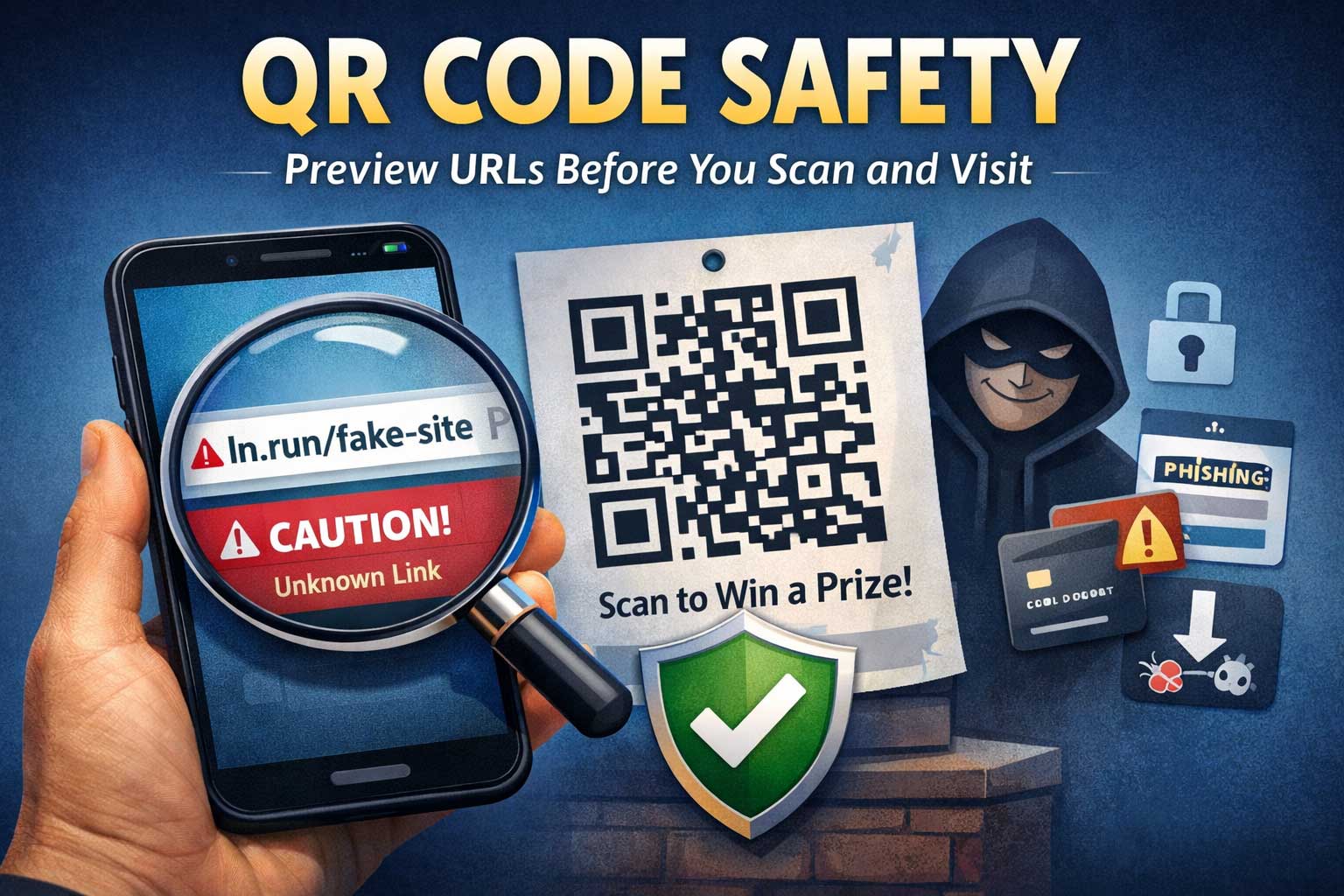
QR codes are everywhere: restaurant menus, parking meters, event tickets, package deliveries, payments, sign-in sheets, and product manuals. They’re fast, convenient, and (most of the time) harmless. But the same convenience that makes QR codes popular also makes them a favorite tool for scammers. A QR code can hide a web address behind an innocent-looking square, and one careless tap can take you somewhere you never intended to go.
The good news is that you don’t have to stop using QR codes. You just need a safer scanning routine—especially one that focuses on previewing what the code will open before you visit it.
This guide explains QR-code threats in plain language and teaches you practical, device-friendly steps to preview URLs, verify legitimacy, and avoid the most common “scan-to-scam” traps. You’ll also learn what businesses should do to create safer QR experiences for customers and what to do if you’ve already scanned something suspicious.
What “QR Code Safety” Really Means
A QR code is simply an encoded payload—often a web address, but not always. It can also contain:
- A plain text message
- A phone number prompt
- A contact card
- A calendar event
- A Wi-Fi network configuration
- An email composition prompt
- An app deep link
- A payment request prompt
Most of the time, the payload is harmless. The danger comes from the fact that the payload is not visible to your eyes—you can’t glance at a QR code and know what it contains. That invisibility creates opportunity for deception.
QR code safety is the habit of treating every scan like you would treat a random link you received in a message: assume nothing, preview first, verify, then proceed.
Why QR Codes Are Attractive to Scammers
QR scams (often called “quishing,” short for QR phishing) work because they remove the usual warning signs you’d see in a suspicious link. When you receive a link in a message, you can often spot weird spelling, a strange domain, or an unexpected destination. With a QR code, you can’t inspect the destination until after scanning—sometimes after you’ve already opened it.
Scammers like QR codes because they can:
- Hide the destination until the last moment
- Replace or cover legitimate codes with malicious ones (sticker overlays)
- Target people in high-trust environments (restaurants, malls, airports, clinics)
- Create urgency (“Pay now,” “Claim your prize,” “Account locked”)
- Bypass some user skepticism (people trust “official-looking” posters)
The Most Common QR Code Threats You Should Know
1) Phishing Pages Disguised as Trusted Brands
The QR code leads to a login page that looks like a bank, a delivery company, a streaming service, or a workplace portal. The goal is to steal usernames, passwords, and sometimes one-time codes.
Typical signs:
- You’re asked to log in “to view the menu,” “to get the receipt,” or “to confirm payment”
- The page feels slightly off: odd layout, unusual wording, missing normal options
- It asks for extra information that doesn’t match the context (full card details for a menu, for example)
2) Payment Redirection or Fake Payment Requests
You scan a “Pay parking” code and it opens a payment page controlled by a scammer. The payment goes to them, not the parking operator.
Typical signs:
- The amount is pre-filled unusually high
- The merchant name is missing or strange
- The page demands card details instead of using a trusted payment flow you normally see
3) Malicious Downloads and App Prompts
Some QR codes push you to install an app or download a file. Even if your phone blocks certain file types, scammers may use social engineering to get you to allow it.
Typical signs:
- “Install this app to view”
- “Update required”
- A sudden prompt to download configuration profiles or grant accessibility permissions
4) “Device Support” and Tech Scam Funnels
The QR code leads to a scary warning page claiming your phone is infected, then instructs you to call “support” or chat with an agent.
Typical signs:
- Alarming popups and urgent language
- Requests to pay for “security” or “cleanup”
- Requests to give remote access (or to install a “support” app)
5) Wi-Fi QR Traps (Evil Twin Networks)
Wi-Fi QR codes can automatically configure a network name and password prompt. A malicious actor can place a QR code that connects you to a fake network designed to intercept traffic.
Typical signs:
- A Wi-Fi QR code in a public place that seems unofficial
- The network name looks similar to the venue but slightly off
- You’re not sure who created the code
6) Redirect Chains That Hide the Final Destination
A QR code may open a seemingly normal site, then redirect you (sometimes multiple times) to an unsafe destination.
Why it matters:
Even if the first preview looks “okay,” the page could bounce you somewhere else after loading.
The Golden Rule: Scan, Preview, Verify, Then Visit
A safer QR routine boils down to four steps:
- Scan the QR code
- Preview the destination (don’t open immediately)
- Verify that it matches the real organization and the situation
- Visit only if it checks out
This guide focuses on how to do steps 2 and 3 well—because that’s where most people skip.
How to Preview a QR Code URL Before Visiting It
Step 1: Use a Scanner That Shows You the Destination First
Many phone cameras and QR scanner apps show a preview card with the destination. The key is: don’t tap “Open” immediately. Pause and read what it says the code will do.
When a preview appears, look for these elements:
- The domain name (the main site name)
- Any subdomain (a prefix before the main name)
- The path (what section it points to)
- Obvious tracking or random strings (not always bad, but worth noting)
If your scanner does not show a readable preview, switch to one that does. A safe scanner should make it easy to copy the destination as text for inspection.
Step 2: Copy the Destination Instead of Opening It
A strong habit is: copy first, open second.
Copying lets you inspect the destination in a safer context (like a notes app) without automatically loading anything.
What to do after copying:
- Read it slowly
- Look for brand spelling mistakes
- Look for extra words that don’t belong
- Look for strange “account verification” or “security” paths that don’t match the situation
Step 3: Verify the Domain Name, Not the Page Design
Scammers can clone page designs easily. The domain name is harder to fake convincingly—though they try.
Focus on the domain name:
- Does it match the organization you expect?
- Does it contain unnecessary extra words?
- Does it look like a cheap imitation of a known brand?
- Does it use an unusual domain ending you wouldn’t expect for that organization?
A common trick is to use a long address that contains a familiar brand name somewhere in the middle, hoping you’ll glance quickly and assume it’s official. Don’t check for the brand name anywhere—check for it in the actual domain name.
Step 4: Watch for Lookalike Characters and Punycode Tricks
Some scam domains use characters that look like normal letters but aren’t. This can make a fake site appear legitimate at a glance.
What you can do:
- Be suspicious if the domain looks “almost right”
- If your browser shows a warning or displays the domain in a weird format, stop
- If the destination is hard to read, don’t proceed
Step 5: Be Extra Cautious With Shortened Links
Some QR codes open shortened links that hide the final destination. Short links are not automatically unsafe, but they reduce transparency.
If a QR code uses a shortened link:
- Treat it as higher risk
- Prefer to find the destination through the organization’s official app or official site entry point you already trust
- If you must proceed, open it only after additional verification steps (more on that below)
Step 6: Check Whether It’s Asking for Credentials or Payments
Before you visit, ask yourself:
- Why would a menu need a login?
- Why would a parking meter need my account password?
- Why would a public poster require personal details?
A QR code that leads to a page asking for sensitive information should trigger your internal alarm. Legitimate services do sometimes require login, but the context must make sense. If it doesn’t, don’t proceed.
A Practical Checklist: What to Look For in a QR Destination Preview
Use this fast mental checklist every time:
Domain and identity
- ✅ The domain name matches the real organization
- ✅ No suspicious extra words in the domain
- ✅ No weird misspellings or swapped letters
Context match
- ✅ The destination matches why you’re scanning
- ✅ It doesn’t demand unrelated permissions or info
- ✅ It doesn’t create urgency or fear
Behavior expectations
- ✅ It doesn’t auto-download something
- ✅ It doesn’t immediately show “account locked” warnings
- ✅ It doesn’t force you into payment without clear confirmation
Physical clue check (before scanning)
- ✅ The QR code isn’t a sticker slapped over another code
- ✅ The sign looks official and consistent with the venue
- ✅ The QR placement makes sense (not random or out of place)
How to Scan QR Codes Safely on iPhone
iPhones typically handle QR scanning through the Camera app. The safest approach is to scan with the camera, then inspect the preview before opening.
Safer iPhone habits
- Use the Camera app and wait for the preview banner/card
- Long-press or tap carefully to see options (such as copy) if available
- Avoid scanning from inside random apps that immediately open the result
- Be cautious with prompts asking to install profiles or allow unusual settings
For suspicious QR codes
If the destination looks even slightly off:
- Don’t open it
- Close the camera preview
- Find an official source (venue’s official menu printed on the receipt, official app, or staff confirmation)
How to Scan QR Codes Safely on Android
Android devices vary more by brand, but many have built-in QR scanning through the camera or a quick settings tile. The key is the same: preview first.
Safer Android habits
- Use the built-in camera scanner that shows the destination clearly
- Choose “copy” when possible instead of “open”
- Keep browser safe browsing features turned on
- Be cautious with any page that asks for app installs, permissions, or accessibility access
Because Android ecosystems vary, be especially careful about QR flows that push you to install a “required” scanner app. If your phone already scans QR codes, you usually don’t need a new scanner.
What About QR Codes That Don’t Open Websites?
Not every QR code leads to a website. Here’s how to safely handle other types.
Wi-Fi QR codes
These can add a network configuration automatically.
Safety tips:
- Only use Wi-Fi QR codes provided directly by trusted staff
- Confirm the network name verbally if possible
- Avoid connecting to unknown networks for sensitive activities (like banking)
Payment QR codes
These might open a payment app or a payment request prompt.
Safety tips:
- Confirm the merchant name and amount before approving
- Be cautious of payment links opened in a browser rather than a trusted payment app
- If something feels off, pay at the counter or through the official method you already trust
Contact cards and calendar invites
A QR code might add a contact or create a calendar event.
Safety tips:
- Preview the details first
- Don’t accept calendar events that include suspicious notes or requests
- Don’t automatically save contacts from unknown sources
How Scammers Physically Tamper With Real QR Codes
A lot of QR scams aren’t “digital genius”—they’re simple physical tricks.
Sticker overlay attacks
A scammer prints a malicious QR code sticker and places it over a real one on a poster, parking meter, or table tent.
How to spot it:
- Edges lifting, bubbles, or uneven surface
- Two layers visible
- Misalignment with the printed design
- A QR code that looks newer or glossier than the sign
Replacement signs
In some environments, scammers place a whole fake sign that looks “official enough.”
How to spot it:
- Low-quality printing
- Inconsistent branding, spelling issues, odd grammar
- A sense of urgency (“Avoid fine,” “Pay immediately”)
- No other supporting official details (like venue name, help desk info)
Previewing URLs Like a Pro: What to Check Beyond the Domain
1) Strange subdomains
A legitimate organization may use subdomains, but scammers do too. If you’re not familiar with the organization’s normal subdomains, treat it cautiously.
Ask:
- Is this subdomain expected in this situation?
- Does it look like a random string?
- Is it trying to mimic something official like “secure” or “verify”?
2) Confusing paths and keyword stuffing
Some malicious links include convincing words in the path to appear trustworthy.
Ask:
- Does the path match what you’re doing?
- Does it look like it’s trying too hard to reassure you?
- Does it include “login,” “verify,” or “account” when you’re just trying to view a menu?
3) Tracking parameters aren’t automatically bad
Many legitimate links contain tracking information, especially for marketing campaigns. But a long string of random characters can also hide dangerous behavior, redirecting, or session traps.
Rule of thumb:
- Tracking alone isn’t proof of a scam
- Tracking plus suspicious domain plus pressure to act quickly is a red flag
4) Redirect behavior after opening
Even if the preview looks okay, the page may redirect you somewhere else.
Safer habit:
- Once the page loads, immediately check that the domain shown in the browser still matches what you previewed
- If it changes unexpectedly, close it
The “Context Test”: The Simplest Anti-Scam Filter
Before you open any QR result, do a two-question check:
- Who is this supposed to be?
- Why would they need me to do this right now?
If the answers aren’t obvious and reasonable, don’t proceed.
Examples of mismatches:
- A restaurant menu QR that asks for a password
- A public poster QR that asks for banking details
- A parking QR that asks you to log into an unrelated account
- A delivery QR that demands urgent payment with threats
Scams thrive on confusion. Clarity is your shield.
Safer Ways to Access the Same Information Without Trusting the QR Code
Sometimes the safest choice is not scanning at all.
Use the official app you already have
For payments, tickets, transport, banking, and deliveries, the official app is usually safer than a QR code that opens a browser page.
Type the organization name into your browser yourself
If you need a menu, a booking page, or support info, you can often find it by searching the organization’s name directly (instead of scanning a random code).
Ask staff for confirmation
In restaurants, clinics, hotels, and event venues, you can ask:
- “Is this the official QR code?”
- “Does it open your real menu site?”
- “Can you show me on your device?”
This might feel awkward, but it’s a normal security habit now.
What To Do If You Already Scanned a Suspicious QR Code
If you scanned a QR code and something felt wrong, here’s a calm, practical response plan.
1) Close the page immediately
Don’t keep clicking around to “see what it is.” Exiting reduces the chance you’ll interact with prompts.
2) Don’t enter any information
If you typed credentials, assume they could be compromised and act quickly (next step).
3) If you entered a password, change it right away
- Change the password for that account
- If you reused that password elsewhere, change those too
- Turn on multi-factor authentication where available
4) Watch for follow-up messages
Scammers often use stolen info to trigger:
- Account recovery attempts
- Fraud alerts
- Social engineering calls
5) Review device prompts carefully
If you installed an app or granted unusual permissions:
- Remove the app if you don’t trust it
- Review permissions and disable anything suspicious
- Consider running a trusted security scan on your device
6) Monitor payments and accounts
If a payment was involved:
- Check your transaction history
- Contact your payment provider if something looks wrong
- Don’t ignore small “test” charges
7) Report the physical QR if possible
If this happened in a public place:
- Tell the venue staff
- Point out the suspicious sticker or sign
- Encourage them to remove it and inspect other locations
QR Code Safety for Businesses: How to Protect Your Customers
If you’re a business using QR codes, you share responsibility for customer safety. Safer QR practices build trust and reduce complaints.
1) Use a consistent, official domain
Customers learn to recognize your domain. Consistency makes it easier to spot fakes.
Avoid:
- Random third-party domains
- Overly complex link structures
- Unexpected domains that don’t match your brand
2) Print human-readable destination hints next to the QR code
A simple line like “Scan to view our menu” isn’t enough. Consider including a short, readable indicator of what the destination should look like—without requiring customers to rely entirely on the QR.
This helps customers verify the preview matches expectations.
3) Make QR code assets tamper-resistant
For physical signage:
- Use designs that make sticker overlays obvious
- Place QR codes behind protective covers when possible
- Inspect high-traffic codes regularly (parking meters, counters, tables)
4) Avoid forcing logins for low-risk content
If customers are just trying to view a menu or a schedule, avoid requiring login. Login prompts increase risk because scammers love to imitate them.
5) Use secure site practices
Your website should:
- Use HTTPS correctly
- Avoid unnecessary redirects
- Clearly display your brand identity and contact info
- Keep forms minimal and secure
6) Provide a non-QR alternative
A short printed instruction like “You can also view this in our official app or ask staff for a printed menu” makes customers feel safer and reduces reliance on scanning.
7) Monitor for abuse reports and impersonation attempts
Businesses can watch for:
- Customers reporting suspicious prompts
- Complaints about payments or unexpected logins
- QR codes being replaced in the physical environment
Advanced Safety: Turning URL Preview Into a Habit (Without Slowing Your Life)
People skip QR checks because they want speed. The trick is to make safety fast.
The 3-second rule
When the preview appears, spend three seconds scanning for:
- The correct domain name
- No weird misspelling
- No unexpected login or payment request
Three seconds is enough to stop most QR scams.
Use “high-risk mode” in certain places
Any time you scan in these contexts, treat it as high-risk:
- Parking meters and street signs
- Posters on poles or walls
- “Pay here” stickers
- Unattended kiosks
- Random flyers
- Packages you didn’t expect
High-risk mode means: copy, inspect, verify through an official source if possible.
QR Code Safety Myths That Can Get You In Trouble
Myth 1: “If it’s in a nice place, it must be safe”
Scammers target nice places because people trust them.
Myth 2: “My phone will block bad sites”
Phones help, but they can’t catch everything—especially brand-new scam pages.
Myth 3: “If the page looks official, it’s fine”
Page design can be copied. Domain identity matters more.
Myth 4: “QR codes are inherently dangerous”
QR codes are neutral. Your habits determine the risk.
Quick QR Safety Rules You Can Share With Family and Friends
If you want an easy set of rules:
- Never scan-and-open instantly. Preview first.
- Check the domain name carefully. Not the logo.
- Be suspicious of logins, payments, and downloads.
- Look for sticker overlays on physical codes.
- If unsure, use the official app or type the site yourself.
Frequently Asked Questions
Is it safe to scan a QR code if I don’t open it?
Scanning itself usually just decodes the content. The higher risk starts when you open the destination, enter information, approve payments, or install something. Still, you should treat scanning as the beginning of a verification step, not an automatic “go.”
Can a QR code hack my phone just by scanning?
Most QR code attacks rely on getting you to open a page, install something, or provide data. While software vulnerabilities can exist in any technology, practical QR scams overwhelmingly depend on social engineering. That’s why previewing and verifying the destination is so effective.
Are QR codes in restaurants safe?
Many are safe, but restaurants are a common target for sticker overlays. Always check for physical tampering and confirm the preview matches the venue’s real identity.
What should I do if a QR code asks me to install an app?
Pause. Ask why an app is needed. If it’s a service you already know and trust, install only through your device’s official app store search, not through a QR landing page prompt.
How can I tell if a payment QR code is legitimate?
Confirm the merchant identity and amount before approving. If the flow looks unusual or the merchant name doesn’t match the venue, don’t pay through that code—use an official method instead.
Final Takeaway: Treat QR Codes Like Untrusted Links
The safest mindset is simple: a QR code is just a link you can’t see yet.
So don’t let it rush you.
Build a habit of scanning, previewing, verifying, and only then visiting. That single change—preview before open—stops the majority of QR scams because it breaks the scammer’s biggest advantage: your speed.