Scan a URL for Phishing (2026): Step-by-Step Safety Checklist to Avoid Fake Websites
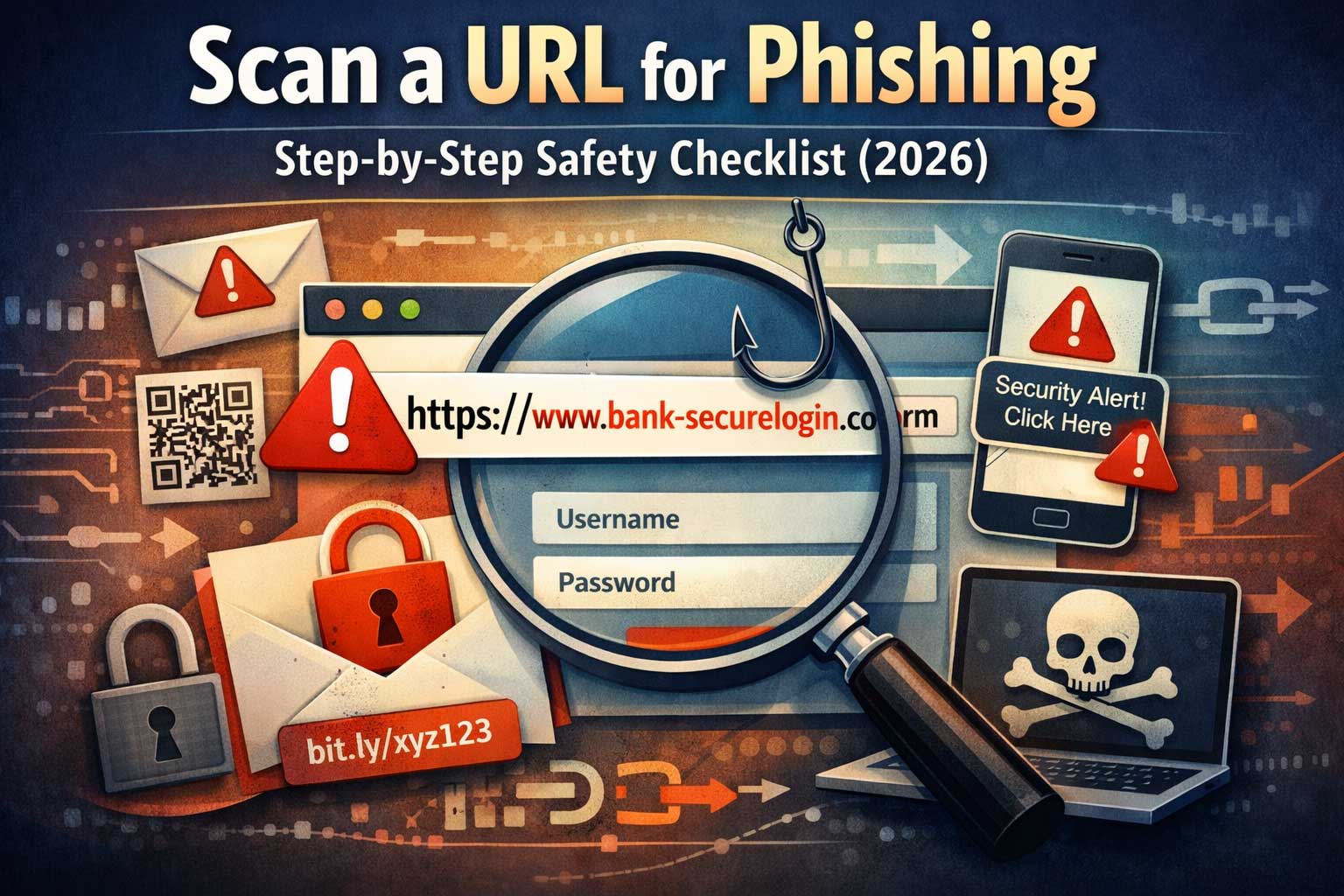
Phishing isn’t “just an email problem” anymore. In 2026, phishing links show up everywhere: text messages, social apps, QR codes, ads, fake support chats, calendar invites, and even inside legitimate-looking documents. The scary part is that many phishing URLs don’t look obviously dangerous at first glance—especially on mobile where the address bar is short, previews are limited, and you’re often clicking fast.
This guide teaches you how to scan a URL for phishing using a practical, repeatable checklist. You’ll learn what to look for, why it matters, and how to verify a link safely without taking unnecessary risks. You don’t need to be a cybersecurity expert. You just need a process.
Why phishing URLs still work in 2026
Phishing keeps working because it targets human habits, not just technology. Even with better browser warnings and stronger authentication, attackers still succeed by pushing you into one of these states:
- Urgency: “Your account will be locked today.”
- Fear: “Suspicious login detected.”
- Opportunity: “You won a reward.”
- Authority: “This is IT support—sign in now.”
- Convenience: “Just confirm this one thing.”
Modern phishing campaigns also use realistic branding, polished language, and believable flows. Some even route you through legitimate services, compromised sites, or redirection chains so the link looks safer. That’s why you need more than “it looks fine” as a decision rule.
A good URL scan is about answering one question:
“Is this link taking me exactly where I think it is, for a reason I trust, through a path I can verify?”
What a URL can tell you (and what it can’t)
Before you scan, it helps to understand what a URL is actually saying. Think of a URL as a set of clues. Some clues are strong; others are easy to fake.
The parts of a URL (conceptually)
A typical web address contains:
- Protocol (like a secure protocol): indicates how the browser connects.
- Domain name: the core identity of the site (the most important piece).
- Subdomain: optional text before the main domain.
- Path: the “folders” and page location after the domain.
- Query parameters: extra data after the path, often used for tracking or passing information.
- Fragment: a page location marker used by some sites.
What a URL can reliably help you verify
- Whether you’re on the correct domain (if you know the correct domain).
- Whether the link includes odd patterns common in scams.
- Whether there are redirect clues or suspicious tracking elements.
What a URL cannot prove by itself
- That the site is “legitimate” just because it looks professional.
- That a lock icon means “safe” in the sense people assume.
- That a familiar brand logo on the page means you’re with that brand.
Attackers can buy domains, set up secure connections, and clone real websites. A URL scan helps you detect deception before you interact.
The most common phishing URL tricks (2026 edition)
Phishing URLs are designed to exploit quick reading. Attackers count on you scanning left-to-right, trusting brand keywords, and ignoring the true domain.
Lookalike domains and tiny spelling changes
A common trick is to register a domain that looks almost identical to a real brand. The differences are often:
- A swapped letter
- An extra letter
- A missing letter
- A similar-looking character
- A subtle word change
If your brain reads the “shape” of the word instead of each character, you can miss it.
Homoglyph and international character tricks
Some letters from different alphabets look identical to common letters. Attackers use these to create a domain that appears right but is technically different. On some devices, it may display in a deceptive way.
Subdomain stuffing (the “brand is in the front” trap)
A link can include a brand name as a subdomain while the real domain is something else. For example, it can look like:
- “brand-name” appears early
- But the real domain later is unrelated
Rule: The “real domain” is not the first brand word you see. It’s the registered domain portion that matters.
Hyphens, extra words, and “security” bait
Attackers often add reassuring words:
- secure
- verify
- login
- support
- account
- update
- help
- portal
These words can be used in legitimate URLs too, but when they appear in a crowded, messy address—especially with a brand name—it’s a red flag.
Short links and hidden destinations
Short links hide the destination domain. Attackers love them because you can’t scan what you can’t see. Short links also allow multiple redirects before landing on the final site.
Redirect chains and “open redirect” abuse
Some legitimate sites have redirect features. Attackers exploit these by creating links that start on a trusted site, then bounce to a phishing site. The first part looks safe; the final destination is not.
Unusual formats that reduce readability
Examples include:
- Very long strings of random characters
- Many dashes
- Multiple “dot” sections that look like separate sites
- Unfamiliar domain endings
- Numeric addresses instead of names
Mobile-specific deception
On mobile, you might only see part of a URL. Attackers rely on that:
- The beginning looks legitimate
- The real domain is hidden off-screen
- App browsers can be harder to inspect
- Copy/paste reveals more than what you see
The 60-second pre-click checklist (fast version)
If you only do one thing, do this quick scan before clicking:
- Pause. Is the message trying to rush or scare you?
- Check the source. Do you trust who sent it? Does it match their usual style?
- Reveal the full URL. Don’t rely on truncated previews.
- Find the real domain. Ignore brand words in front; identify the actual site identity.
- Look for tiny misspellings. One character can change everything.
- Watch for redirects. Short links and “tracking” URLs are higher risk.
- If it asks for login/payment urgently, stop. Verify using a trusted method.
Now let’s turn this into a detailed, step-by-step process you can reuse.
Step-by-step safety checklist to scan a URL for phishing (2026)
Step 1: Freeze the moment and label the situation
Before you analyze the link, ask:
- What is this link trying to make me do?
- What happens if I do nothing for 10 minutes?
- Is there urgency, fear, or a reward?
Phishing often succeeds because you act first and think second. Your first “scan” is psychological: is this message pushing my buttons? If yes, treat the link as suspicious until proven safe.
Step 2: Verify the channel and sender context
Different channels have different risk levels:
- Email: addresses can be spoofed; display names lie.
- SMS and messaging apps: numbers and accounts get hijacked; fake support is common.
- Social media: impersonation and hacked accounts are widespread.
- Ads and promoted posts: can lead to fake sites, even if they look official.
- QR codes: you can’t “see” the destination easily.
Ask: Is this the normal way this person or company contacts me?
If your bank suddenly “texts you a login link,” that’s a mismatch. If a coworker sends a weird link with no context, that’s a mismatch.
Mismatch doesn’t prove phishing, but it raises the level of verification needed.
Step 3: Reveal the full URL (don’t scan a preview)
You can’t scan what you can’t see.
- On desktop, hover to preview the destination (but still verify by copying if needed).
- On mobile, press-and-hold to preview if your app supports it.
- Copy the link text into a safe note so you can read it carefully.
Goal: get the full address displayed as plain text so you can inspect it without clicking.
Step 4: Identify the real domain (most important step)
This is the heart of URL scanning.
A reliable way to do it:
- Locate the first single slash after the domain section (if you can see it).
- Everything before that is the site identity portion.
- Focus on the last two meaningful name parts (not counting subdomains).
What you’re trying to avoid:
- A brand name placed in front as a subdomain
- A long string where you stop reading too early
- A “trusted-looking” word that isn’t the actual domain
Mental rule:
Don’t trust the first brand you see. Trust the true domain you verify.
Step 5: Check for lookalike spelling and character tricks
Now zoom in on the domain itself:
- Read it character-by-character, not as a word shape.
- Look for swapped letters, doubled letters, missing letters.
- Watch for characters that look similar.
If anything feels “off,” assume it’s malicious until you can confirm through a trusted route.
Step 6: Interpret “secure connection” correctly
Many people believe a lock icon means “the site is safe.” In 2026, that assumption is outdated.
A secure connection typically means:
- The traffic between your device and the site is encrypted.
It does not automatically mean:
- The site is legitimate
- The business is real
- The page won’t steal your password
Attackers can and do set up secure connections on phishing sites. So treat “secure connection” as the baseline—not as proof of legitimacy.
Step 7: Inspect the path for forced login or fake urgency
After the domain, the path often reveals intent.
Red flags include paths that suggest:
- Immediate login with an urgent tone
- “Verification” for security alerts
- Unexpected billing or payment pages
- Attachments or file-like names that don’t match the context
This isn’t definitive, but it helps you detect “forced action” design.
Step 8: Examine query parameters for manipulation
Query parameters are extra bits that pass information. They are frequently used for tracking—but phishing also uses them for deception:
- Passing your email address to prefill a login box (to make it feel personal)
- Carrying “redirect” instructions to bounce you somewhere else
- Including tokens that make the page look like it’s tied to a legitimate workflow
Red flags in parameters:
- A parameter that looks like another web address embedded inside it
- Multiple “redirect-like” parameters
- Extremely long random strings without a reason you can explain
A normal company can use long parameters too, but phishing links often look like a messy chain of instructions.
Step 9: Confirm the destination using a trusted method (best practice)
If the link claims to be from a known company, the safest move is:
- Don’t use the provided link.
- Open the service the way you normally do (saved bookmark, official app, or typing it yourself).
- Then navigate inside the service to the alert or message.
If the alert is real, it will usually appear inside your account. If it doesn’t, the link was likely bait.
This single habit defeats a huge percentage of phishing attempts.
Step 10: Use a “safe viewing” approach if you must check the page
Sometimes you need to investigate a link for work, a client, or personal reasons. If you must open it, reduce risk:
- Use a separate browser profile dedicated to untrusted links.
- Avoid signing into anything in that session.
- Disable autofill and password manager auto-fill for that session.
- Don’t download files from it.
- Don’t allow notifications.
Important note: Private browsing helps with local history and cookies, but it doesn’t make a malicious site harmless. Treat it as “less convenient,” not “secure.”
Step 11: Watch for the “fake login overlay” pattern
A common phishing trick is to show a page that looks like a real sign-in screen. Signs it might be fake:
- It asks for your password immediately without context.
- It doesn’t behave like the real site’s login flow.
- It pressures you to act fast.
- It blocks navigation or shows repetitive errors until you re-enter credentials.
- It requests extra information that the real service usually doesn’t ask for.
If you’re unsure, stop and verify through the trusted method in Step 9.
Step 12: If you proceed, add guardrails that limit damage
If you decide the site is legitimate but still want to be cautious:
- Use a password manager to auto-fill only on the correct domain (this is a powerful safety feature).
- Never reuse passwords across services.
- Enable multi-factor authentication on important accounts.
- Use a security key or passkey where possible.
- Avoid entering sensitive info if anything feels inconsistent.
A strong authentication setup can turn a “phishing mistake” into a harmless near-miss.
Step 13: If you already clicked, do a quick damage-control routine
Clicking alone isn’t always catastrophic. What matters is what happened next.
If you clicked but didn’t enter anything:
- Close the tab.
- Clear the site’s data for that session if you’re concerned.
- Run a quick security scan if your device supports it.
If you entered credentials:
- Change that password immediately from a trusted route.
- Change it anywhere else you reused it (if applicable).
- Enable or tighten multi-factor authentication.
- Check recent sign-in activity and logged-in devices.
- Consider contacting support through official channels.
If you entered payment details:
- Contact your bank/card provider using official support channels.
- Monitor transactions closely.
- Freeze or replace the card if advised.
The key is speed and certainty: stop the attacker from using what they got.
Advanced URL checks (for power users)
If you want deeper verification, these checks add confidence—especially useful in business contexts.
Check domain age and ownership signals
Phishing domains are often:
- Newly registered
- Registered for short periods
- Using privacy-masked information (not always malicious, but common)
A very new domain pretending to be a well-known company is suspicious.
Inspect redirect behavior
Advanced attackers use multi-step redirects. If you can safely observe the chain (without logging in), you can detect:
- An initial “trusted” site that forwards elsewhere
- A tracking hop that leads to a different domain
- A final destination that doesn’t match the claim
Redirect chains are not inherently bad, but phishing loves them.
Look at certificate details for consistency
Certificate information can sometimes reveal:
- Mismatched organization signals
- Weird naming that doesn’t align with the brand
- A certificate that exists but doesn’t “fit” the context
Remember: attackers can get valid certificates too. This check is supportive, not decisive.
Check for “open redirect” on known services
Some legitimate services have redirect features attackers abuse. If you see a link that starts on a trusted service but includes a redirect instruction, treat it as high risk until you confirm the final destination is correct.
How to scan phishing links by where you found them
Email phishing link scan
Email-specific red flags:
- Urgent security warnings
- Invoices you didn’t expect
- Attachments paired with a login link
- “Reply quickly” pressure
Extra step: verify the sender identity beyond the display name. Also be cautious with “thread hijacking” where attackers reply inside real threads after compromising an account.
SMS and messaging phishing scan
Messaging-specific red flags:
- Shortened links
- “Your package” and “your delivery” lures
- Payment or address confirmation requests
- Messages from unknown numbers pretending to be services
Messaging apps also make it easy to tap quickly. Slow down and reveal the full link.
Social media phishing scan
Social-specific red flags:
- Fake giveaways
- Verified-looking impersonators
- Direct messages claiming account issues
- “Copyright violation” or “page appeal” lures for creators
Always verify through the platform’s official settings and notifications rather than a link in a message.
QR code phishing scan
QR codes remove the “preview” advantage. Safer habits:
- Use a scanner that shows the destination before opening.
- Treat QR codes in public places as untrusted.
- If it leads to login or payment, verify through the official app instead.
Real-world scenarios (walkthrough style, no risky examples)
Scenario 1: “Your account is locked—sign in now”
Checklist application:
- Urgency detected → raise suspicion.
- Verify channel: is this how the company contacts you?
- Don’t click the link.
- Open the service using your normal method.
- Check account notifications inside the service.
- If no alert exists, treat it as phishing.
Scenario 2: “Document shared with you—view now”
Common trick: fake document portals.
Checklist application:
- Confirm sender identity through another message channel if possible.
- Reveal the full link destination.
- Verify the domain is the real document provider domain you trust.
- If it asks for login unexpectedly, stop and open your document app directly.
- Check “shared with me” inside the app.
Scenario 3: “Payment failed—update billing”
Checklist application:
- This is high-stakes → never use embedded links.
- Go directly to the service’s billing area via your usual method.
- If there’s a real billing issue, it will appear there.
- If not, the message is likely bait.
Phishing-resistant habits that make URL scanning easier
You can scan links faster and more confidently if you build a few protective habits.
Use a password manager (as a phishing detector)
A good password manager typically only auto-fills on the exact saved domain. That means:
- If the site is a lookalike, auto-fill won’t trigger.
- That’s a strong warning signal.
Even if you don’t auto-fill, just seeing “no match found” can prevent mistakes.
Turn on multi-factor authentication for important accounts
If an attacker steals your password, multi-factor authentication can stop them. In 2026, phishing kits often try to steal one-time codes too, but stronger methods (like security keys or passkeys) can significantly reduce risk.
Keep devices and browsers updated
Many phishing pages rely on outdated behaviors, weak protections, or older vulnerabilities. Updates matter more than people think, and they also improve built-in phishing warnings.
Reduce your “click surface area”
- Unsubscribe from unnecessary alerts you don’t rely on.
- Limit app permissions that allow random links to open in-app.
- Be cautious installing browser extensions, which can be abused.
Create a personal rule for high-risk actions
For anything involving login, payment, or personal data:
Never use the link in the message. Always navigate using a trusted route.
This one rule prevents most serious phishing losses.
Common mistakes when scanning URLs for phishing
Mistake 1: Trusting brand words in the link
Brand words can appear anywhere, including places that don’t matter. Only the true domain identity matters.
Mistake 2: Thinking “secure connection” means “safe”
Encryption is not legitimacy.
Mistake 3: Relying on the page design
Phishing pages are often visually perfect. Design is easy to copy.
Mistake 4: Using only intuition
Intuition fails when you’re tired, busy, or stressed. A checklist works even when your brain is overloaded.
Mistake 5: Treating mobile as “close enough”
Mobile is where phishing thrives because you see less and tap more. On mobile, you should verify more, not less.
FAQ: Scanning URLs for phishing in 2026
Is a lock icon enough to trust a site?
No. It typically indicates an encrypted connection, not that the site is legitimate.
Are shortened links always phishing?
Not always, but they hide the destination, which increases risk. If the link asks for login or payment, avoid using shortened links and verify through a trusted route.
Can phishing happen even if I don’t download anything?
Yes. The main goal is often credential theft. Simply entering your password into a fake site is enough.
What if the link came from a friend?
Friends’ accounts can be hacked. If the message is unusual, verify with them in another way before clicking.
What’s the safest way to handle “security alert” messages?
Do not use the link. Open the service normally and check alerts inside your account settings.
Can a phishing URL look exactly like the real one?
It can look extremely close, but it cannot be identical without controlling the real domain. That’s why careful domain verification is powerful.
Final takeaway: The phishing URL scan that actually works
If you want a simple mental model that covers most real-world situations, use this:
- Pause and assess pressure.
- Reveal the full URL.
- Identify the real domain.
- Verify through a trusted route for anything sensitive.
- Use guardrails (password manager + multi-factor) to reduce damage even if you slip.
Phishing doesn’t win because people are “careless.” It wins because people are human. A step-by-step checklist turns phishing from a scary guessing game into a clear decision process—one you can repeat confidently in 2026 and beyond.