Social Media Link Preview: How to Avoid Malicious Redirects (Complete Guide)
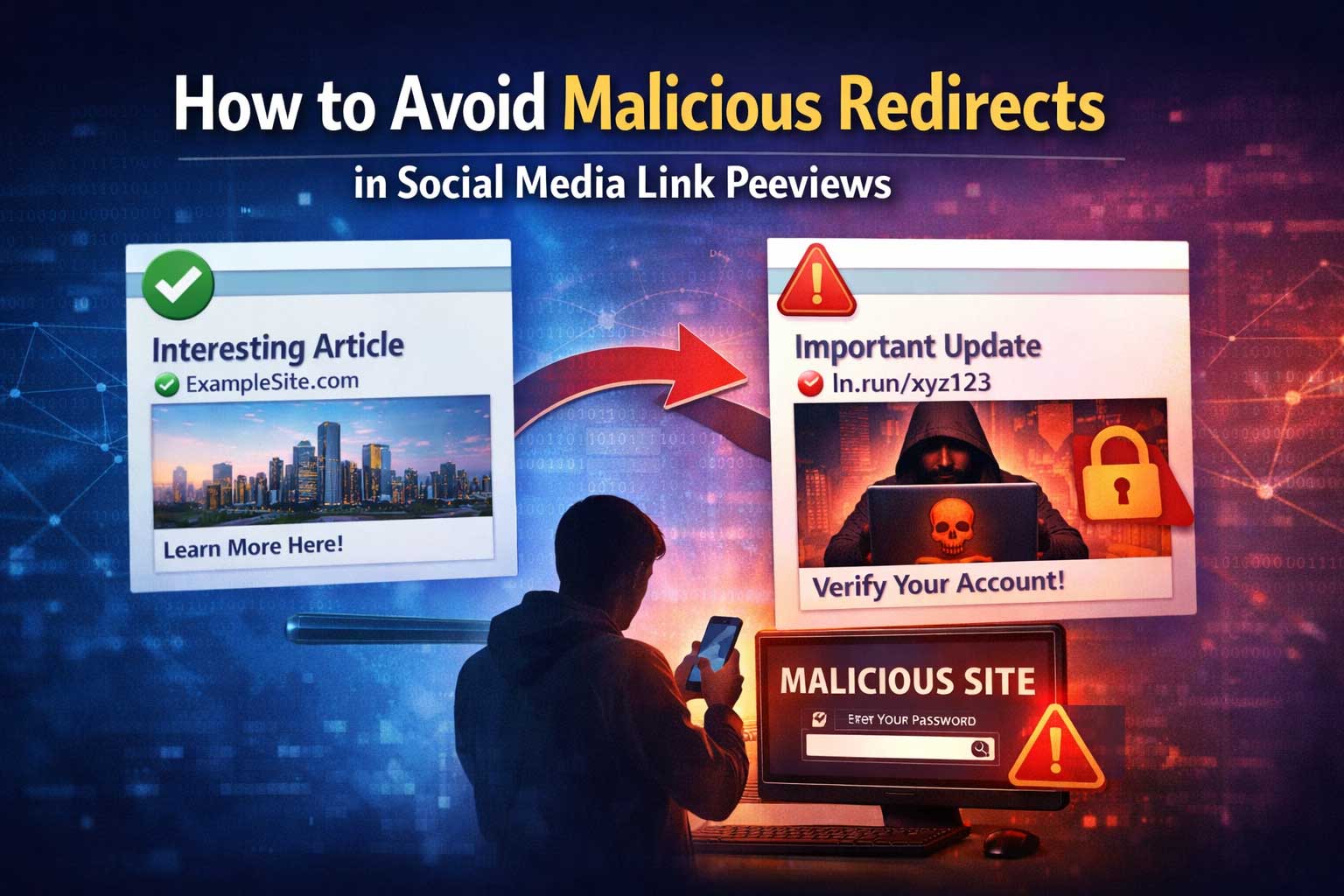
Social media is built for speed. You see a post, glance at a preview card, and tap without thinking. That’s exactly why link previews have become both a powerful safety signal and a popular attack surface. A good preview helps people decide whether a link is trustworthy. A bad preview—or a preview that can be manipulated—can trick people into clicking through to something dangerous.
This guide goes deep on how social media link previews actually work, why malicious redirects are so effective, and how to avoid them. It covers three perspectives:
- Everyday users who want to stay safe when tapping links
- Creators and marketers who want to protect their audiences and their reputation
- Website owners and developers who want to prevent redirects from being abused and ensure previews reflect reality
You’ll learn practical habits, technical concepts (without needing to be a security expert), and concrete checklists you can apply immediately.
What a Social Media Link Preview Really Is
A social media link preview is the little “card” that appears when someone shares a link. It usually includes:
- A title
- A short description
- A thumbnail image
- A domain label or site name
- Sometimes extra elements like author, publish date, or category
Behind the scenes, most platforms generate this preview by doing something like:
- Detect a link in a post, message, or comment
- Fetch the content from that link using an automated system (a crawler or “link scraper”)
- Extract preview metadata (title, description, image) from the page
- Display a cached preview card to others
The important detail is this: the preview is not always a live view of what you’ll get when you click. It’s often cached, simplified, and built using automated logic that can behave differently than a normal browser.
That difference—between “what the preview system sees” and “what the user sees”—is where many malicious redirect tricks live.
Why Redirects Are Central to Link Safety
A redirect is when a link sends you somewhere else. Redirects can be normal and harmless. Common legitimate reasons include:
- Moving a page to a new location
- Tracking campaign performance
- Routing users to region-specific pages
- Sending mobile users to a mobile experience
- Requiring login before showing content
Redirects become risky when they’re used to create a mismatch between:
- The link you think you’re visiting (based on the preview)
- The page you actually land on (after redirects)
A malicious redirect chain may start with a “clean-looking” page that generates a trustworthy preview card, but then forward real users to a harmful destination.
How Redirects Happen (In Plain Language)
There isn’t just one type of redirect. Attackers use whichever method best avoids detection and best targets real humans.
Server-Side Redirects
These happen before your browser even loads the page content.
- Permanent redirects and temporary redirects are sent by the server as part of the response.
- They can be chained: Link A goes to B, B goes to C, and so on.
Why it matters: server-side redirects are quick and can be invisible to users who don’t pay attention.
Client-Side Redirects
These happen after the browser loads a page.
- A page can instantly send you somewhere else using browser behavior.
- Some redirects happen only after a delay or after a click.
Why it matters: many preview systems don’t run pages like a real browser does, so they might not see the same destination you do.
Conditional Redirects (The Most Abused)
The destination changes based on who (or what) is visiting.
A page can redirect differently depending on signals like:
- Whether the visitor is a social media crawler or a real user
- Device type (mobile vs desktop)
- Language and region
- Whether the visitor is logged in
- Whether the visitor came from a social platform
- Time of day (used to rotate “clean” behavior with “bad” behavior)
Why it matters: conditional logic is how attackers show a harmless preview to the platform while sending humans to a harmful site.
Why Malicious Redirects Work So Well on Social Media
Malicious redirects succeed because they exploit normal human behavior and platform design constraints.
People Trust Preview Cards
A preview with a clean title and a familiar thumbnail feels safe. Many people treat the preview as verification.
Platforms Can’t Fully Simulate Every Browser
To generate previews at scale, platforms use automated fetchers. They may:
- Not execute all scripts the way a browser would
- Use simplified user agents
- Block certain content for security
- Stop after a limited number of redirects
- Cache results for speed
This creates opportunities for attackers to show one thing to the platform and another to the user.
Attackers Keep Changing Tactics
Even if a platform blocks a known pattern, attackers adjust quickly:
- Rotating domains
- Rotating redirect paths
- Using compromised websites as “middle steps”
- Targeting specific devices or geographies
A Redirect Chain Creates Confusion
If you land somewhere unexpected, the attacker wants you to assume it’s normal—especially if the page looks like a login portal, a shipping notice, or a “security check.”
Common Malicious Redirect Scenarios to Watch For
This section describes patterns without teaching how to build them. The goal is recognition.
Scenario 1: “Clean Preview, Dirty Destination”
The preview card looks like a reputable article or tool, but clicking leads to:
- A fake login page
- A “download” prompt
- A survey or prize scam
- A page that asks for payment details
- A suspicious “security verification” step
Key clue: the content you land on doesn’t match the preview’s topic, tone, or brand identity.
Scenario 2: Shortened Links That Hide the Real Domain
A short link or tracking link is used to conceal where you’ll end up.
Key clue: the preview card emphasizes a brand, but the tap opens an unfamiliar domain and immediately asks for sensitive info.
Scenario 3: “Your Account Has a Problem” Redirects
These are urgency-based. The redirect lands on a page claiming:
- Your account will be locked
- Your message failed to deliver
- Your package needs confirmation
- Your payment was declined
Key clue: urgency + request for credentials + mismatched domain.
Scenario 4: Mobile-Only Redirect Attacks
A preview might be generated from a desktop-like crawler view, but real mobile users get redirected to a different place.
Key clue: friends on desktop say the link looks normal; on mobile it behaves differently.
Scenario 5: “Just One More Step” Interstitial Pages
The link opens a page that looks like a normal “continue” step, but the next click triggers the harmful redirect.
Key clue: excessive prompts, multiple continue buttons, or confusing UI that tries to force a tap.
How Link Previews Can Be Misleading (Even Without Malice)
Not every mismatch is an attack, but understanding normal causes helps you spot abnormal ones.
Cached Previews
Platforms often cache preview data. A preview might show:
- Old title/description
- An image that has since changed
- A brand name that no longer matches the page
Geographic Routing
A legitimate site may route users differently by country. This can look suspicious if you expect everyone to see the same page.
Login States and Personalization
Some sites show different content depending on whether you’re logged in. The preview might represent what anonymous visitors see, but you see something else.
A/B Testing
Marketing experiments can change landing pages for different users. Again, it can resemble conditional behavior.
The safety lesson: a mismatch is a warning sign, not automatic proof. Treat it as a reason to slow down and verify.
The Psychology Behind “Tap Now” Attacks
Attackers don’t just exploit technology; they exploit attention.
Speed and Scroll Behavior
Social feeds are designed to keep you moving. Attackers rely on you clicking before thinking.
Familiar Branding
A preview image might mimic a known logo style or a popular news layout.
Social Proof
If a link is shared by a friend, group admin, or widely reposted account, people trust it more.
Emotional Hooks
Anger, excitement, fear, curiosity—emotions reduce verification behavior.
Your best defense is not paranoia; it’s a simple habit shift: pause, check, then tap.
Practical Safety Steps for Everyday Users
You don’t need special tools to reduce risk dramatically. You need a repeatable routine.
1) Read the Domain Like It Matters (Because It Does)
Before tapping, look at the domain label on the preview (if shown). Ask:
- Does the domain match the brand name in the title?
- Is it a domain you’ve seen before from this brand?
- Does it look like a weird variation or misspelling?
Red flags include:
- Extra words or separators that don’t belong
- Strange brand variations
- Names that resemble popular brands but feel “off”
If you’re unsure, don’t tap. Open the post later from a safer context or ask the sender what it is.
2) Watch for “Mismatch Moments”
The moment you click, look for inconsistency:
- The site name changes unexpectedly
- The page topic changes completely
- You see an urgent warning that the preview didn’t suggest
- You’re asked to log in or enter sensitive info immediately
If you notice mismatch: close the page. Do not “try again.” Repeated attempts often trigger different redirect behavior.
3) Be Extra Cautious with Forms
If a page asks for any of these, slow down:
- Passwords
- One-time codes
- Payment details
- Identity documents
- Phone number verification tied to an account
A common safe rule: Don’t enter credentials after arriving via social media unless you intentionally navigated to the official site yourself.
4) Use a “Second Path” for Account Actions
If a link claims there is an account issue, do this instead:
- Close the page
- Open the app or service directly (not through the link)
- Check notifications inside your account settings
This single habit defeats a huge category of attacks.
5) Keep Your Browser and Device Updated
Many redirect-based attacks aim to push you toward harmful downloads or exploit old browser behavior. Updates help reduce what a malicious page can do automatically.
6) Use Built-In Protections
Modern browsers and operating systems include protections against deceptive sites and downloads. Make sure:
- Safe browsing features are enabled
- Download warnings are not disabled
- Unknown app installs are blocked unless you truly need them
7) Treat “Too Good to Be True” Links as High Risk
Giveaways, cash rewards, and shock content are common bait for redirect traps.
Safety Steps for Creators, Community Owners, and Marketers
If you share links with an audience, you also share responsibility for what happens after the tap—especially if your link gets hijacked or leads through third parties.
1) Avoid Link Chains You Don’t Control
Every extra hop is another place things can change. If you must track clicks:
- Keep redirect chains short
- Use reputable infrastructure
- Monitor where links resolve over time
2) Prefer Transparent Sharing
When possible:
- Share direct links to the final destination
- Use clear text explaining where it goes
- Avoid overusing short links in high-trust communities
Transparency isn’t just ethical; it improves audience confidence and reduces the chance your posts get flagged.
3) Audit Old Posts That Still Get Traffic
Some attacks happen months later by compromising an intermediate redirect or a website you used in the past.
A simple maintenance habit:
- Periodically test your high-performing posts
- Confirm the destination still matches the preview and intent
- Remove or update anything suspicious
4) Protect Your Accounts Against Takeover
A major source of malicious redirects is not “bad links,” but stolen accounts posting links.
Protect yourself with:
- Strong, unique passwords
- Multi-factor authentication
- Account recovery settings
- Caution with third-party “growth tools” or integrations
If an attacker posts from your account, your audience will trust the preview automatically.
5) Use Consistent Branding on Your Destination Pages
Legitimate pages should feel like the same brand as the preview. Add:
- Clear site identity
- Obvious navigation
- Clear contact or about indicators
When your landing page looks “thin” or generic, people become easier to trick by a fake alternative.
The Technical Side: How Platforms Generate Previews and Where Attacks Hide
Understanding the mechanics helps you design safer systems and spot weird behavior.
The Preview Fetcher Is Not a Normal Browser
A platform’s preview system often:
- Fetches only the HTML and metadata
- Doesn’t load heavy assets
- Limits scripts or blocks certain behaviors
- Uses special network rules and timeouts
- Caches output for performance
Attackers exploit these differences by presenting “safe HTML” to the fetcher while redirecting real users differently.
Metadata Extraction Creates a Single Point of Trust
Previews rely heavily on metadata fields in a page. If a page claims:
- A certain title
- A certain image
- A certain description
…the platform may display it even if the page later redirects users elsewhere.
This is why preview manipulation can be so effective: people trust the preview card more than the real destination.
Redirect Depth and Time Limits
Platforms often stop following redirects after a certain number of steps. If an attacker:
- Creates a long chain
- Adds delays
- Uses conditional steps
…the preview fetcher may stop early and cache a “safe” preview, while humans continue down the chain.
How Website Owners Can Prevent Redirect Abuse
If you run a website, redirects are often necessary. The goal is to prevent them from becoming a weapon.
1) Keep Redirect Rules Simple and Auditable
Complex redirect logic is harder to secure. Maintain:
- A clear list of redirect rules
- Version control for changes
- Logs for redirects triggered
If something goes wrong, you need to know what changed and when.
2) Avoid “Open Redirect” Behavior
One of the most common redirect weaknesses is when a site accepts a destination parameter and forwards the user without strict validation.
Even if your site is reputable, an attacker can use your domain as a trusted “bounce” to make a malicious link look safe.
Defensive approach:
- Only allow redirects to destinations you explicitly trust
- Use allowlists rather than blocklists
- Reject unusual encodings or obfuscations
- Normalize and validate inputs before use
3) Limit Redirect Chains
If your redirect sends to another redirect, reduce it. Shorten the chain so:
- Users land faster
- It’s easier to inspect
- There’s less room for compromise
4) Make the Destination Transparent to Humans
If you run an intermediate page (like a “continue” page), make it a safety feature, not a dark pattern.
A safe interstitial should:
- Clearly show the destination domain
- Explain why the redirect exists
- Offer a clear option to cancel
- Avoid misleading buttons and distractions
Transparency helps users recognize when something is wrong.
5) Monitor for Unexpected Destination Changes
Attackers often compromise:
- Redirect configurations
- Content management systems
- Advertising scripts
- Analytics tags
- Third-party widgets
Set up monitoring that regularly checks where your key redirect endpoints resolve. If the final destination changes unexpectedly, investigate immediately.
6) Use Security Headers and Strong Transport Settings
While redirects themselves are the main topic, a strong baseline helps prevent compromise:
- Ensure encrypted transport is enforced
- Reduce opportunities for script injection
- Protect admin panels with strict access controls
If an attacker can inject scripts, they can create client-side redirects without touching your server redirect rules.
7) Log, Alert, and Rate-Limit Suspicious Redirect Activity
If you see unusual patterns such as:
- Sudden spikes in redirect hits
- Traffic from unexpected regions
- Repeated requests with strange parameters
- High bounce rates from your redirect endpoints
…treat it as a potential abuse signal.
Rate-limiting and anomaly alerts can stop mass exploitation early.
Designing a Safer Link Preview Experience (For Developers)
If you build a link preview feature, a redirect gateway, or a “safe browsing” preview service, you need a threat-aware design.
Principle 1: Separate Preview Fetching From User Redirection
Never assume that what your preview fetcher saw is what the user will see. A robust system should:
- Resolve redirects during preview generation
- Record the final resolved destination
- Compare later user resolution against the recorded destination
- Flag mismatches
This mismatch detection is one of the strongest defenses against conditional redirect abuse.
Principle 2: Treat Redirect Chains as Data, Not Just Behavior
Store structured information such as:
- Each hop in the chain
- Response type (server redirect vs client redirect detection when feasible)
- Timing and delays
- Observed differences by device or location if you test that
When you treat redirect behavior as data, you can detect patterns and changes.
Principle 3: Show Users the Most Important Truths
A safer preview doesn’t need to overwhelm people. It should highlight:
- The destination domain
- Whether the link used multiple redirects
- Whether the destination recently changed
- Whether the destination has a risky reputation signal (if you maintain one)
The best safety UI is simple: What site am I going to, and how confident are we?
Principle 4: Use Conservative Defaults
If your system is unsure, default to caution:
- Mark as “unknown” rather than “safe”
- Require an extra click for risky patterns
- Avoid auto-opening unknown destinations
Principle 5: Cache With Security in Mind
Caching previews improves speed, but it can also preserve a misleading “clean” preview long after the destination becomes harmful.
Safer caching strategies include:
- Shorter cache lifetimes for links with redirects
- Revalidation when a link starts trending
- Re-checking links that have previously changed destinations
- Faster re-check for links that show conditional behavior
Principle 6: Protect Your Own Infrastructure
Link preview systems fetch untrusted content. That makes them a target.
Best practices include:
- Strong isolation (sandboxing, strict network rules)
- Blocking access to internal services from the preview fetcher
- Timeouts and size limits
- Content-type validation
- Careful handling of images and media parsing
Even if your goal is user safety, your crawler must also be safe.
How to Evaluate a Link Preview for Trust Signals
Whether you’re a user or a moderator, you can quickly score a preview using a few questions.
Trust Signal Checklist
- Does the domain match the brand?
- Does the preview text match the post context?
- Does the thumbnail look natural or oddly generic?
- Does the preview create urgency or fear? (That’s a red flag.)
- Is the post asking you to take account-related action immediately? (High risk.)
- Would you still click if it weren’t shared socially?
If two or more answers feel off, treat it as suspicious.
Malicious Redirect Warning Signs After You Click
Sometimes you only discover risk after tapping. Here are strong “close now” signals:
1) Unexpected Login Prompts
Especially if the preview was an article, a video, or a tool—not an account page.
2) Strange Permission Requests
Pages that request permissions quickly (notifications, downloads, device access) are often trying to lock you into a funnel.
3) Repeated “Continue” Buttons
Attack pages often use multiple steps to bypass user caution. The more hoops, the more suspicious.
4) “Verification” That Feels Unrelated
If the page says you must verify something to proceed, but the preview didn’t imply any verification, stop.
5) Visual Inconsistency
Brand logos slightly wrong, awkward formatting, or copy that feels machine-generated can all be signals.
What to Do If You Think You Clicked a Malicious Redirect
If you suspect you landed somewhere dangerous, focus on damage prevention, not panic.
1) Close the Page Immediately
Don’t explore. Don’t “try again.” Some pages change behavior on repeat visits.
2) Don’t Enter Information
If you already did, treat it as compromised and take account recovery actions directly from the official app or site (not from the link you clicked).
3) Check for Downloaded Files
If a file downloaded unexpectedly, delete it and avoid opening it. If you already opened something and your device behaves oddly, seek trusted help.
4) Report the Post or Message
Most platforms offer reporting tools for spam, scams, and malicious links. Reporting helps reduce spread.
5) Warn the Sender (Politely)
If a friend shared it, their account may be compromised—or they may have shared without realizing.
A simple message works:
- “This link redirected to something suspicious. Please check your account security.”
How Moderators and Community Managers Can Reduce Link Risk
If you manage groups or communities, you’re in a unique position to reduce harm.
1) Set a Simple Link Policy
Examples:
- No shortened links
- No “account issue” links
- Links must include context explaining where they go
2) Use Post Approval for High-Risk Categories
If your group is frequently targeted, require approval for posts with links.
3) Educate Without Fear
Pin a short safety guide that teaches members:
- Check domains
- Avoid credential entry from social taps
- Report suspicious redirects
Communities that normalize verification become harder targets.
Building a “Safe Redirect” Pattern That Helps Users (For Site Owners)
Redirects aren’t going away. The goal is to make them safer and harder to abuse.
A Safer Redirect Experience Includes:
- A visible destination domain
- A clear reason for the redirect (tracking, routing, migration)
- A cancel option
- Minimal third-party scripts
- Strong validation so attackers can’t turn it into an open redirect
A Safer Redirect Experience Avoids:
- Hidden destination information
- Confusing buttons that push the user forward
- Too many hops
- Conditional behavior that changes unpredictably
Even if you operate in marketing-heavy environments, transparency pays off: better trust, fewer complaints, and fewer platform flags.
SEO and Trust: Why Safety Improves Performance
There’s a business side to this too. Safer link experiences tend to perform better because:
- Users bounce less when the destination matches the preview
- Platforms are less likely to downrank or restrict your posts
- Your brand reputation stays intact
- You reduce support tickets and abuse reports
Trust is an SEO advantage even when it’s not a direct ranking factor. People share what feels safe.
Frequently Asked Questions
What’s the difference between a link preview and the actual page?
A preview is a simplified card generated by a platform’s automated system and often cached. The actual page is what your device loads when you click, and redirects may change the destination.
Can a preview look safe even if the destination is dangerous?
Yes. Attackers can show clean metadata to preview crawlers while redirecting real users elsewhere, especially using conditional behavior.
Are all redirects suspicious?
No. Redirects are common and often legitimate. The risk increases when there are multiple hops, mismatches with the preview, or requests for sensitive info that don’t fit the context.
Why do scams often target mobile users?
Mobile users have less screen space to inspect details and often move faster through feeds. Some attacks also use mobile-specific behavior.
Is it safer to avoid clicking links on social media entirely?
You don’t have to avoid them completely, but you should adopt habits: check the domain, watch for mismatches, and never enter credentials after arriving via a social link.
What should I do if a friend keeps sending suspicious links?
Assume their account may be compromised. Encourage them to secure their account and avoid clicking anything they didn’t intentionally send.
Quick Checklists You Can Save
User Checklist Before Clicking
- Does the domain match the brand?
- Does the preview match the post context?
- Is there urgency or fear language?
- Would I still click if this weren’t social media?
User Checklist After Clicking
- Did the domain change unexpectedly?
- Am I being asked to log in or verify something unrelated?
- Am I being pushed through multiple “continue” steps?
- Does anything feel inconsistent with the preview?
If yes, close it.
Site Owner Checklist
- No open redirect behavior without strict validation
- Redirect chains kept short
- Monitoring on redirect endpoints
- Clear, transparent interstitials when needed
- Strong baseline security to prevent script injection
Developer Checklist for Preview Systems
- Resolve and record redirect chains
- Detect mismatches over time
- Conservative safety labeling
- Revalidation for trending links
- Strong isolation for crawlers
Conclusion: Trust the Destination, Not the Card
A social media link preview is helpful, but it’s not a guarantee. The safest mindset is simple:
- A preview is a hint
- The destination is the truth
- Redirects are the gap attackers exploit
When you learn to read domains, notice mismatches, and avoid credential entry after social taps, you remove most of the attacker’s advantage. And if you’re a site owner or developer, building transparent redirect behavior and mismatch detection can protect both users and your brand.